Install SWS in PeopleSoft, run the psLens container, point it at SWS, log in. The pages in order:
Overview
psLens is a single self-contained application: a Go binary that serves the web interface and stores report data locally. There is no separate database to manage. It connects to your PeopleSoft environment through the SWS (Secure Web Services) framework, which you must install and configure in PeopleSoft first.
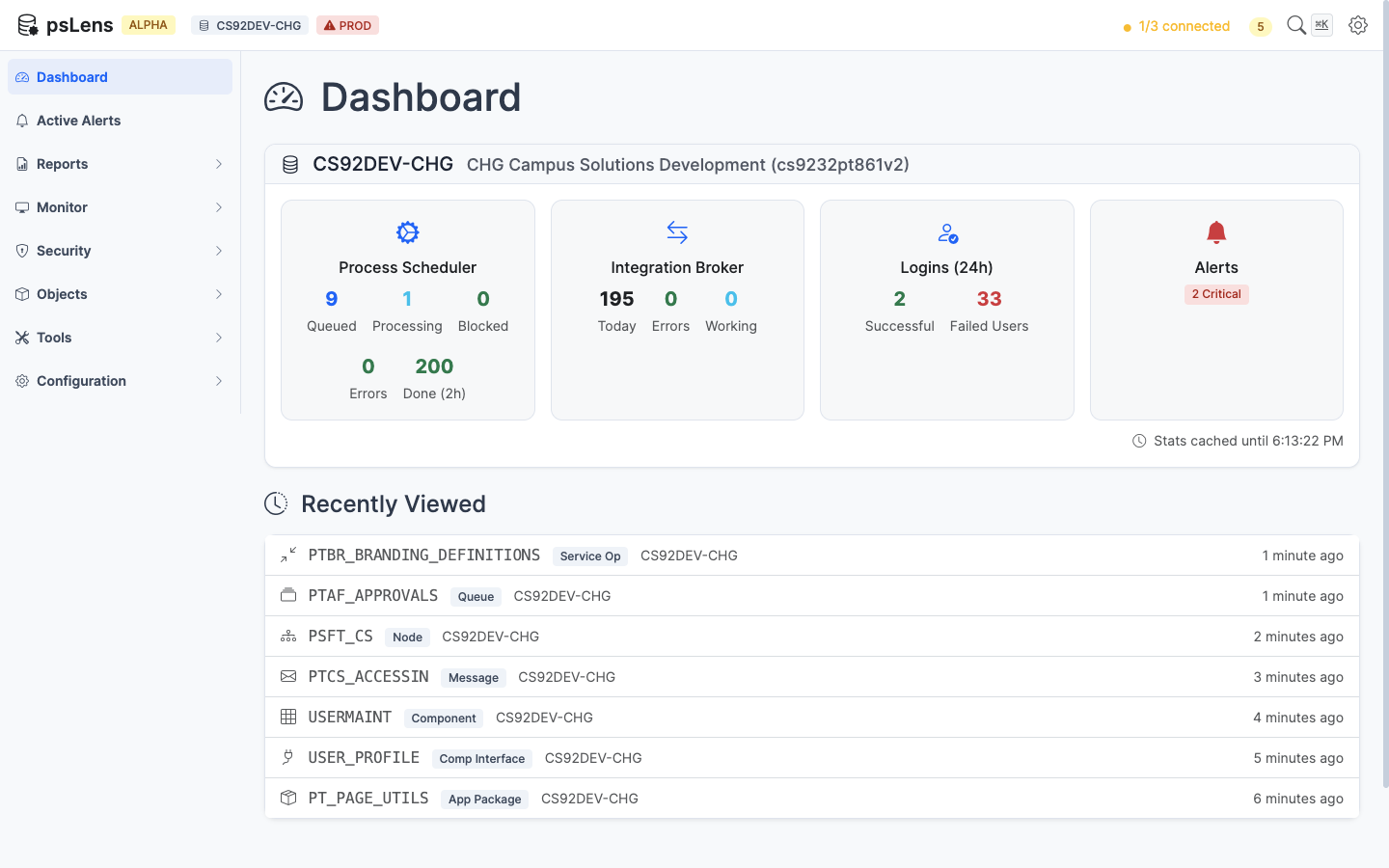
The psLens dashboard — your starting point for monitoring PeopleSoft environments
Hosting psLens in production? Read Deployment Options for HTTPS, version pinning, backups, and upgrade paths.
Start psLens and open the dashboard in your browser
Quick Start
After you install the SWS framework in PeopleSoft:
# Create a directory for psLensmkdir pslens &&cd pslens
# Create config.yaml with your PeopleSoft connection details# (see Configuration for full details)# Start psLens with Dockerdocker compose up -d
# Open http://localhost:8080 in your browser
Not Ready to Install Yet?
If you are still evaluating architecture, security, or operator workflow, see it running first. A live demo is the quickest way to answer fit questions before you commit to an install path.
How psLens connects to PeopleSoft: a small SWS framework inside your PeopleSoft environment, and a psLens Docker container hosted externally.
Architecture Overview
psLens has only two moving parts:
The SWS framework, a small Integration Broker service installed inside your PeopleSoft environment.
The psLens application, a single Docker container hosted externally (default: fly.io) or on your own infrastructure.
psLens queries PeopleSoft through SWS over HTTPS. When alert delivery is configured, the container also sends notifications to an SMTP server or chat webhook. Your team accesses the application in a browser over HTTPS.
The Short Version
Two components, nothing else. SWS runs inside PeopleSoft. psLens runs as a Docker container outside it.
Traffic only flows one way. psLens calls SWS over HTTPS. SWS never sends requests to psLens.
One protocol. REST + HTTP basic auth + psoftQL JSON queries. No database drivers, no ODBC, no jump hosts.
One scope. SWS only answers queries against PeopleTools metadata tables that you whitelist. SWS rejects anything outside the list before the query reaches the database.
Dedicated deployment per customer. No shared psLens app, no shared storage, no multi-tenant SaaS backend.
How the Pieces Fit
%%{init: {"theme": "redux-color", "flowchart": {"htmlLabels": true, "padding": 30, "nodeSpacing": 70, "rankSpacing": 70, "subGraphTitleMargin": {"top": 20, "bottom": 32}}}}%%
flowchart LR
    USER(["Your team's<br/>web browser"])
    APP["psLens<br/>Docker container"]

    subgraph PS["Your PeopleSoft Environment"]
        SWS["SWS Framework<br/>REST endpoint<br/>Read-only"]
        DB[("PeopleSoft DB<br/>read-only<br/>whitelisted tables")]
        SWS --> DB
    end

    EMAIL["Alerts via Email<br/>SMTP"]
    CHAT["Alerts via Chat - Teams/Slack/Google"]

    USER -- "HTTPS" --> APP
    APP -- "HTTPS · Basic auth<br/>psoftQL JSON" --> SWS
    APP -- "SMTP - Optional" --> EMAIL
    APP -- "HTTPS webhook" --> CHAT

    classDef ps fill:#e8f4fd,stroke:#0d6efd,stroke-width:2px,color:#000
    classDef ext fill:#fff5e6,stroke:#fd7e14,stroke-width:2px,color:#000
    classDef user fill:#e9f7ef,stroke:#198754,stroke-width:2px,color:#000
    classDef notify fill:#f3f0ff,stroke:#6f42c1,stroke-width:2px,color:#000
    classDef subgraphStyle fill:#fafafa,stroke:#666,stroke-width:1px,color:#000

    class SWS,DB ps
    class APP ext
    class USER user
    class EMAIL,CHAT notify
    class PS,EXT,ALERTS subgraphStyle
Your team reaches psLens with any current web browser over HTTPS. There is no desktop client to install. The browser never talks to PeopleSoft directly. If alert delivery is configured, psLens sends email through SMTP and posts to Slack, Microsoft Teams, or Google Chat through incoming webhooks.
The SWS framework is a small Integration Broker service Cedar Hills Group provides. Your PeopleSoft team installs it once, alongside everything else PeopleSoft already runs. It exposes a single REST endpoint that accepts a structured query language called psoftQL and returns JSON.
What SWS gives you control over:
The whitelist. Your PeopleSoft admins decide which PeopleTools metadata tables SWS can read. psLens cannot ask for anything off the list.
The credentials. SWS authenticates incoming requests with HTTP basic auth. Your team owns the token. Rotating the token is a configuration change on both ends.
The audit trail. Calls land on your Integration Broker like any other inbound service, visible in the tooling your team already monitors.
No PeopleSoft database username or password is ever shared with psLens.
Outside Your Environment: psLens Container
psLens itself is a single Docker container: one Go binary, with embedded NATS for storing alert history and report output. That’s the entire runtime.
Default deployment is on fly.io as a managed instance dedicated to your organization.
Self-hosting is fully supported. Docker, docker-compose, bare-metal, and air-gapped environments are all covered in the installation guide.
Stateless toward PeopleSoft. psLens does not copy your business data. The only things it persists are alert history and report output, both inside its own dedicated storage. See the Security & Trust page for details on what is and isn’t stored.
When you upgrade psLens, you pull a new container image. Nothing inside PeopleSoft changes.
psLens renders pages on the server with Go templates and streams updates over Server-Sent Events using Datastar. There is no React, no Angular, no JSON API. The browser receives HTML fragments over SSE (TLS at the transport layer) and renders them.
Two consequences fall out of this:
The browser stores nothing from PeopleSoft. psLens does not write to LocalStorage, SessionStorage, or IndexedDB. Closing the tab takes the active session data with it.
No JSON wire format. The server sends pre-rendered HTML. There is no client-side data structure for an attacker to scrape or tamper with. Page transitions are server round-trips of a few KB of HTML, and the browser tab holds no result set.
Why This Shape
Bounded blast radius. If an attacker compromises the psLens container, the SWS whitelist limits what they can read. They cannot access PeopleSoft directly, run PeopleCode, or pivot to other tables.
Easy to upgrade and operate. New psLens features ship as a new container image. No PeopleSoft change request, no App Designer migration, no downtime on the PeopleSoft side.
Multi-environment from day one. A single psLens deployment can connect to DEV, TEST, and PROD at the same time. Point at the SWS endpoint in each environment via separate database entries in config.yaml.
Where Next
Installation installs SWS in PeopleSoft and runs the psLens container.
Configuration wires psLens to your PeopleSoft environments.
Security & Trust covers the read-only design, dedicated deployment, and what psLens does and doesn’t store.
2 - Installation
psLens uses a Cedar Hills Group, Inc. web service inside your PeopleSoft environment to connect to the psLens web application. This page describes how to install and configure the SWS framework for psLens.
The psLens web application connects to your PeopleSoft environments with a limited version of our SWS framework.
You will install a PeopleSoft Application Designer project (CHG_PSLENS) with two web services that expose a REST API for reading data from PeopleSoft tables. psLens calls the web services instead of talking to the database directly. The CHG_PSLENS_SWSPQL service operation performs most of the work. A secondary operation, CHG_PSLENS_METADATA_GET, returns metadata that database tables do not store. It relies on proprietary PeopleCode functions.
We do NOT deliver the full SWS framework to customers for psLens. The full SWS framework is a commercial product. It provides a query language, a web service framework, and tools for managing REST APIs on PeopleSoft. psLens uses a small subset of the framework to read PeopleSoft tables.
This installation guide assumes that Cedar Hills Group, Inc. hosts the psLens web application. If you host psLens yourself, see Deployment Options for local setup instructions. Hosting psLens with Cedar Hills Group provides the fastest setup. It is our recommended option for most customers.
Download the CHG_PSLENS Application Designer project archive from your psLens instance (see details below).
Import the project into your PeopleSoft DEV environment (see details below).
Run the whitelist insert statements to grant table access (see details below).
Configure the service account for API access and assign the required permissions (see details below).
Ensure your psLens instance can reach the PeopleSoft Integration Gateway on port 443 (or your configured port).
Work with Cedar Hills Group to connect the psLens application to your environments.
Download the PeopleSoft Project
The Application Designer project files are delivered directly inside your running psLens instance:
Sign in to your psLens web application.
In the left navigation sidebar under Settings & Configuration, select PeopleSoft Project (or navigate to Settings and click the PeopleSoft Project card).
On the PeopleSoft Project Download page, the latest release archive is featured at the top. Releases are named by ISO date (YYYY-MM-DD-pslens-psoft-project.zip). Always install the most recent release.
Click Download Latest Project (.zip) to save the archive to your workstation.
Extract the archive. The extracted directory contains the CHG_PSLENS Application Designer project.
PeopleSoft Project Installation
You will repeat these steps for each PeopleSoft environment you want to connect to psLens (DEV, TST, PROD). We recommend starting with DEV first, then TST, then PROD. The steps are the same for each environment. You can follow your standard change management process for importing the project into TST and PROD.
Using Application Designer, import the project into your PeopleSoft environment from the extracted folder (Tools → Copy Project → From File).
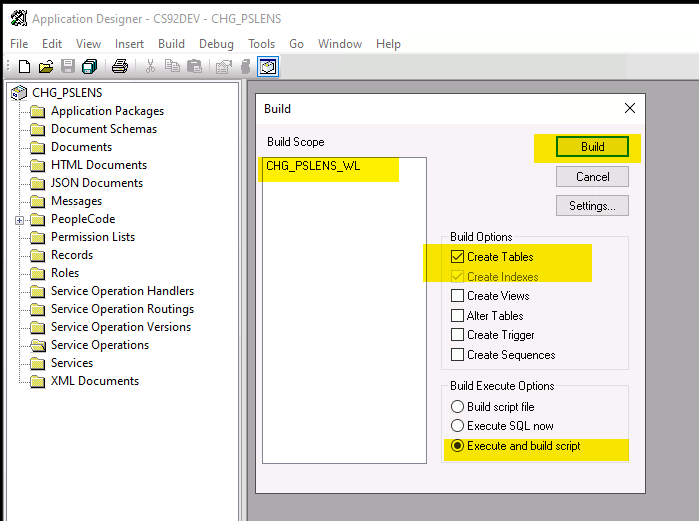
After importing the project, you need to build the CHG_PSLENS_WL table.
This holds the list of whitelisted tables that psLens can read. You will run the whitelist inserts to populate this table.
Build
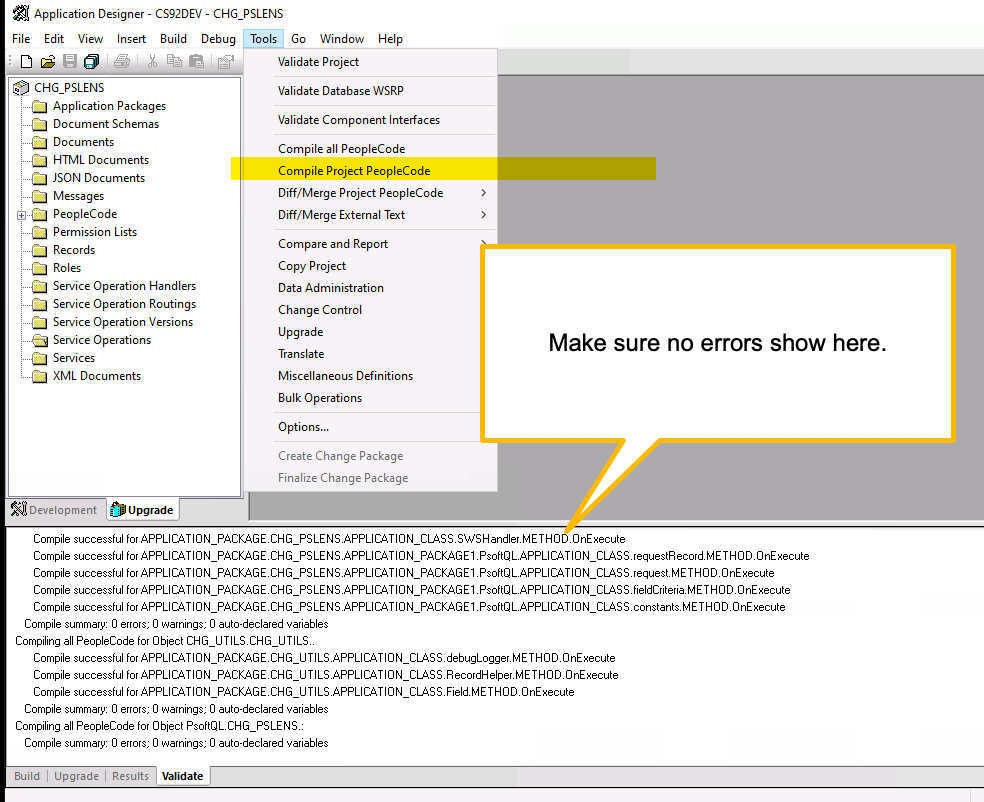
Compile all the project PeopleCode to ensure that the project was fully imported. There should be no errors. If there are errors, please contact Cedar Hills Group for assistance or try to re-import the project.
Compile
Whitelist Inserts
You will need to run the whitelist inserts to allow psLens to read the tables it needs. Please see the Whitelist Tables page for the full list of inserts. You will need to run these inserts in each PeopleSoft environment you want to connect to psLens (DEV, TST, PROD).
PeopleSoft Service Account
psLens uses a dedicated PeopleSoft operator ID (OPRID) for API access. This is the account that psLens uses to authenticate to the SWS framework.
The naming convention for the account is CHG_PSLENS_API_USER. You can use a different name if you prefer, but you will need to update the psLens configuration to match.
Create OPRID: CHG_PSLENS_API_USER
Add a complex password that meets your security requirements. This password will be used in the psLens configuration. Use a password manager to generate a strong password.
Grant the following permissions to the account:
ID Type: NONE
Role: CHG_PSLENS_API_USER
Permission List: CHG_PSLENS_API_USER
The account should NOT have any other permissions or roles. It should only have the permissions required to read the whitelisted tables. If you have any sort of dynamic security roles, make sure that they do not grant any additional permissions to this account. The account should be as limited as possible. The permission list that we deliver in the project is the entire set of permissions that psLens needs to read the whitelisted tables. If you have any questions about the permissions, please contact Cedar Hills Group.
psLens to PeopleSoft Connectivity
We will cover the most common configuration where Cedar Hills Group, Inc. hosts the psLens web application and you have a network team that can allow the psLens server to reach the PeopleSoft Integration Gateway.
The default configuration for psLens is to connect to the PeopleSoft Integration Gateway over HTTPS from the internet. The psLens server must be able to reach the PeopleSoft Integration Gateway on port 443 (or your configured port). This often requires a firewall rule to allow the psLens server to reach the PeopleSoft Integration Gateway. The hostname of your PeopleSoft Integration Gateway must be resolvable from the psLens server. This is often an entry in your public DNS. Most organizations do NOT expose the PeopleSoft Integration Gateway to the public internet.
If your organization exposes the PeopleSoft Integration Gateway to the public internet, you likely will not need to make any changes to your firewall.
Cedar Hills Group configures a dedicated egress IP address for your psLens instance. Work with your network team to allow this IP address to reach the PeopleSoft Integration Gateway on port 443 (or your configured port). If you have questions about connectivity, contact Cedar Hills Group.
PeopleSoft administrators often want to test connectivity between psLens and the PeopleSoft Integration Gateway before configuring the web application. The following curl command tests connectivity. Replace the placeholders with your actual values.
PS_LENS_API_USER - The PeopleSoft operator ID that psLens uses to authenticate to the SWS framework. This is the account that you created in the previous step. The default value is CHG_PSLENS_API_USER.
PS_LENS_API_PASSWORD - The password for the PeopleSoft operator ID that psLens uses to authenticate to the SWS framework. This is the password that you set when you created the account.
PS_HOST - The hostname of your PeopleSoft Integration Gateway. psLens uses this hostname to connect to the PeopleSoft Integration Gateway. The psLens server must resolve this hostname.
PS_PORT - The port your Integration Gateway listens on. The PeopleSoft default for HTTP is port 8000. HTTPS frequently uses port 8443.
PS_NODE - The name of the PeopleSoft node that fronts the REST listening connector. The default value is PSFT_CS. Use the node that matches your environment.
Keep single quotes around variable assignments. PeopleSoft passwords often contain !, $, or spaces. An unquoted value breaks in the shell before curl executes. In bash and zsh, an unquoted ! triggers history expansion, causing assignment failure and leaving curl to authenticate with an empty password.
A successful call returns HTTP 200 with a data.CHG_PSLENS_WL.fields array listing whitelisted RECNAME values. Two common failures:
401 - The operator ID or password is incorrect, or an administrator locked the account.
404 - The node name or service operation path is incorrect. Check PS_NODE against your created node. Make sure the CHG_PSLENS_SWSPQL service operation is active.
3 - Whitelist Tables
psLens controls which PeopleSoft tables can be queried through a whitelist table (CHG_PSLENS_WL). You need to whitelist every table that psLens reads.
Whitelist Tables
psLens uses a global whitelist table (CHG_PSLENS_WL) to control which PeopleSoft tables clients can query. You must whitelist every table that psLens reads. The Reference section documents the complete table list by feature area.
This page provides the SQL insert statements to run during installation. After running the statements, restart psLens or wait for cache refresh. Check the Settings > Database Connections page. Make sure the database status shows no missing-table warnings.
PeopleTools Tables Common to All Features
Run all of the inserts below. Each block matches a category in the Reference page. If you add new functionality to psLens that queries a new record, add it here too.
-- Whitelist record itself (optional: CHG_PSLENS_WL is always readable by the framework)
INSERTINTOPS_CHG_PSLENS_WL(RECNAME)VALUES('CHG_PSLENS_WL');-- Security tables
INSERTINTOPS_CHG_PSLENS_WL(RECNAME)VALUES('PSAUTHAS');INSERTINTOPS_CHG_PSLENS_WL(RECNAME)VALUES('PSAUTHBUSCOMP');INSERTINTOPS_CHG_PSLENS_WL(RECNAME)VALUES('PSAUTHITEM');INSERTINTOPS_CHG_PSLENS_WL(RECNAME)VALUES('PSAUTHPRCS');INSERTINTOPS_CHG_PSLENS_WL(RECNAME)VALUES('PSAUTHSIGNON');INSERTINTOPS_CHG_PSLENS_WL(RECNAME)VALUES('PSAUTHWS');INSERTINTOPS_CHG_PSLENS_WL(RECNAME)VALUES('PSCLASSDEFN');INSERTINTOPS_CHG_PSLENS_WL(RECNAME)VALUES('PSMENUITEM');INSERTINTOPS_CHG_PSLENS_WL(RECNAME)VALUES('PSOBJGROUP');INSERTINTOPS_CHG_PSLENS_WL(RECNAME)VALUES('PSOPRDEFN');INSERTINTOPS_CHG_PSLENS_WL(RECNAME)VALUES('PSOPROBJ');INSERTINTOPS_CHG_PSLENS_WL(RECNAME)VALUES('PSROLECLASS');INSERTINTOPS_CHG_PSLENS_WL(RECNAME)VALUES('PSROLEDEFN');INSERTINTOPS_CHG_PSLENS_WL(RECNAME)VALUES('PSROLEUSER');INSERTINTOPS_CHG_PSLENS_WL(RECNAME)VALUES('SCRTY_ACC_GRP');INSERTINTOPS_CHG_PSLENS_WL(RECNAME)VALUES('SCRTY_QUERY');INSERTINTOPS_CHG_PSLENS_WL(RECNAME)VALUES('PTACM_ACCESSTBL');INSERTINTOPS_CHG_PSLENS_WL(RECNAME)VALUES('PSPTSCRTY_ADS_A');-- Metadata tables
INSERTINTOPS_CHG_PSLENS_WL(RECNAME)VALUES('PSBCDEFN');INSERTINTOPS_CHG_PSLENS_WL(RECNAME)VALUES('PSBCITEM');INSERTINTOPS_CHG_PSLENS_WL(RECNAME)VALUES('PSDBFIELD');INSERTINTOPS_CHG_PSLENS_WL(RECNAME)VALUES('PSDBFLDLABL');INSERTINTOPS_CHG_PSLENS_WL(RECNAME)VALUES('PSKEYDEFN');INSERTINTOPS_CHG_PSLENS_WL(RECNAME)VALUES('PSMENUDEFN');INSERTINTOPS_CHG_PSLENS_WL(RECNAME)VALUES('PSXFERITEM');INSERTINTOPS_CHG_PSLENS_WL(RECNAME)VALUES('PSPNLDEFN');INSERTINTOPS_CHG_PSLENS_WL(RECNAME)VALUES('PSPNLFIELD');INSERTINTOPS_CHG_PSLENS_WL(RECNAME)VALUES('PSPNLGROUP');INSERTINTOPS_CHG_PSLENS_WL(RECNAME)VALUES('PSPNLGRPDEFN');INSERTINTOPS_CHG_PSLENS_WL(RECNAME)VALUES('PSPROJECTDEFN');INSERTINTOPS_CHG_PSLENS_WL(RECNAME)VALUES('PSPROJECTITEM');INSERTINTOPS_CHG_PSLENS_WL(RECNAME)VALUES('PSPRSMATTRVAL');INSERTINTOPS_CHG_PSLENS_WL(RECNAME)VALUES('PSPRSMDEFN');INSERTINTOPS_CHG_PSLENS_WL(RECNAME)VALUES('PSPRSMPERM');INSERTINTOPS_CHG_PSLENS_WL(RECNAME)VALUES('PSPRSMSYSATTR');INSERTINTOPS_CHG_PSLENS_WL(RECNAME)VALUES('PSPRSMSYSATTRVL');INSERTINTOPS_CHG_PSLENS_WL(RECNAME)VALUES('PSRECDEFN');INSERTINTOPS_CHG_PSLENS_WL(RECNAME)VALUES('PSRECFIELD');INSERTINTOPS_CHG_PSLENS_WL(RECNAME)VALUES('PSPTSF_SD');INSERTINTOPS_CHG_PSLENS_WL(RECNAME)VALUES('PSPTSF_SD_ATTR');INSERTINTOPS_CHG_PSLENS_WL(RECNAME)VALUES('PSPTSF_SD_DCATR');INSERTINTOPS_CHG_PSLENS_WL(RECNAME)VALUES('PSPTSF_SRCCAT');INSERTINTOPS_CHG_PSLENS_WL(RECNAME)VALUES('PSPTSF_SRCCATAT');INSERTINTOPS_CHG_PSLENS_WL(RECNAME)VALUES('PSRECDDLPARM');INSERTINTOPS_CHG_PSLENS_WL(RECNAME)VALUES('PSIDXDDLPARM');INSERTINTOPS_CHG_PSLENS_WL(RECNAME)VALUES('PSSPCDDLPARM');INSERTINTOPS_CHG_PSLENS_WL(RECNAME)VALUES('PSDDLMODEL');INSERTINTOPS_CHG_PSLENS_WL(RECNAME)VALUES('PSDDLDEFPARMS');INSERTINTOPS_CHG_PSLENS_WL(RECNAME)VALUES('PSOPTIONSADDL');INSERTINTOPS_CHG_PSLENS_WL(RECNAME)VALUES('PSTBLSPCCAT');INSERTINTOPS_CHG_PSLENS_WL(RECNAME)VALUES('PSRECTBLSPC');INSERTINTOPS_CHG_PSLENS_WL(RECNAME)VALUES('PSFLDDEFN');INSERTINTOPS_CHG_PSLENS_WL(RECNAME)VALUES('PSFLDSEGDEFN');INSERTINTOPS_CHG_PSLENS_WL(RECNAME)VALUES('PSFLDFIELDDEFN');INSERTINTOPS_CHG_PSLENS_WL(RECNAME)VALUES('PSXLATITEM');INSERTINTOPS_CHG_PSLENS_WL(RECNAME)VALUES('SQLSTMT_TBL');-- Integration Broker tables
INSERTINTOPS_CHG_PSLENS_WL(RECNAME)VALUES('PSAPMSGPUBCON');INSERTINTOPS_CHG_PSLENS_WL(RECNAME)VALUES('PSAPMSGPUBHDR');INSERTINTOPS_CHG_PSLENS_WL(RECNAME)VALUES('PSAPMSGSUBCON');INSERTINTOPS_CHG_PSLENS_WL(RECNAME)VALUES('PSAPMSGDOMSTAT');INSERTINTOPS_CHG_PSLENS_WL(RECNAME)VALUES('PSAPMSGDSPSTAT');INSERTINTOPS_CHG_PSLENS_WL(RECNAME)VALUES('PSIBLOGHDR');INSERTINTOPS_CHG_PSLENS_WL(RECNAME)VALUES('PSIBRTNGDEFN');INSERTINTOPS_CHG_PSLENS_WL(RECNAME)VALUES('PSIBAPPLDEFN');INSERTINTOPS_CHG_PSLENS_WL(RECNAME)VALUES('PSIBAPPLOPR');INSERTINTOPS_CHG_PSLENS_WL(RECNAME)VALUES('PSIBAPPURI');INSERTINTOPS_CHG_PSLENS_WL(RECNAME)VALUES('PSIBAPPMETHOD');INSERTINTOPS_CHG_PSLENS_WL(RECNAME)VALUES('PSIBPARAM');INSERTINTOPS_CHG_PSLENS_WL(RECNAME)VALUES('PSIBBASEPARAM');INSERTINTOPS_CHG_PSLENS_WL(RECNAME)VALUES('PSIBTEMPLPARAM');INSERTINTOPS_CHG_PSLENS_WL(RECNAME)VALUES('PSIBBASETMPLPRM');INSERTINTOPS_CHG_PSLENS_WL(RECNAME)VALUES('PSIBAPPLSTATES');INSERTINTOPS_CHG_PSLENS_WL(RECNAME)VALUES('PSIBAPPLHDRPROP');INSERTINTOPS_CHG_PSLENS_WL(RECNAME)VALUES('PSMSGNODEDEFN');INSERTINTOPS_CHG_PSLENS_WL(RECNAME)VALUES('PSNODECONPROP');INSERTINTOPS_CHG_PSLENS_WL(RECNAME)VALUES('PSNODEURITEXT');INSERTINTOPS_CHG_PSLENS_WL(RECNAME)VALUES('PSNODESDOWN');INSERTINTOPS_CHG_PSLENS_WL(RECNAME)VALUES('PSOPERATION');INSERTINTOPS_CHG_PSLENS_WL(RECNAME)VALUES('PSOPERATIONAC');INSERTINTOPS_CHG_PSLENS_WL(RECNAME)VALUES('PSOPERATIONURI');INSERTINTOPS_CHG_PSLENS_WL(RECNAME)VALUES('PSOPRHDLR');INSERTINTOPS_CHG_PSLENS_WL(RECNAME)VALUES('PSOPRVERDFN');INSERTINTOPS_CHG_PSLENS_WL(RECNAME)VALUES('PSOPRVERDFNPARM');INSERTINTOPS_CHG_PSLENS_WL(RECNAME)VALUES('PSQUEUEDEFN');INSERTINTOPS_CHG_PSLENS_WL(RECNAME)VALUES('PSQUEUEPART');INSERTINTOPS_CHG_PSLENS_WL(RECNAME)VALUES('PSRTNGDFNPARM');INSERTINTOPS_CHG_PSLENS_WL(RECNAME)VALUES('PSRTNGDFNPROP');INSERTINTOPS_CHG_PSLENS_WL(RECNAME)VALUES('PSSERVICE');INSERTINTOPS_CHG_PSLENS_WL(RECNAME)VALUES('PSSERVICEOPR');-- Process Scheduler tables
INSERTINTOPS_CHG_PSLENS_WL(RECNAME)VALUES('PRCSDEFN');INSERTINTOPS_CHG_PSLENS_WL(RECNAME)VALUES('PRCSDEFNGRP');INSERTINTOPS_CHG_PSLENS_WL(RECNAME)VALUES('PRCSDEFNPNL');INSERTINTOPS_CHG_PSLENS_WL(RECNAME)VALUES('PRCSJOBDEFN');INSERTINTOPS_CHG_PSLENS_WL(RECNAME)VALUES('PRCSJOBGRP');INSERTINTOPS_CHG_PSLENS_WL(RECNAME)VALUES('PRCSJOBITEM');INSERTINTOPS_CHG_PSLENS_WL(RECNAME)VALUES('PRCSJOBPNL');INSERTINTOPS_CHG_PSLENS_WL(RECNAME)VALUES('PRCSJOBMESSAGE');INSERTINTOPS_CHG_PSLENS_WL(RECNAME)VALUES('PRCSMUTUALEXCL');INSERTINTOPS_CHG_PSLENS_WL(RECNAME)VALUES('PRCSRECUR');INSERTINTOPS_CHG_PSLENS_WL(RECNAME)VALUES('PRCSRECURDATE');INSERTINTOPS_CHG_PSLENS_WL(RECNAME)VALUES('PRCSRECUREXEMPT');INSERTINTOPS_CHG_PSLENS_WL(RECNAME)VALUES('PSPRCSRQST');INSERTINTOPS_CHG_PSLENS_WL(RECNAME)VALUES('PRCSDEFNNOTIFY');INSERTINTOPS_CHG_PSLENS_WL(RECNAME)VALUES('PRCSDEFNCNTDIST');INSERTINTOPS_CHG_PSLENS_WL(RECNAME)VALUES('PRCSJOBNOTIFY');INSERTINTOPS_CHG_PSLENS_WL(RECNAME)VALUES('PRCSJOBCNTDIST');INSERTINTOPS_CHG_PSLENS_WL(RECNAME)VALUES('SERVERDEFN');INSERTINTOPS_CHG_PSLENS_WL(RECNAME)VALUES('PSSERVERSTAT');INSERTINTOPS_CHG_PSLENS_WL(RECNAME)VALUES('SERVERCATEGORY');INSERTINTOPS_CHG_PSLENS_WL(RECNAME)VALUES('SERVERCLASS');INSERTINTOPS_CHG_PSLENS_WL(RECNAME)VALUES('SERVERNOTIFY');INSERTINTOPS_CHG_PSLENS_WL(RECNAME)VALUES('SERVEROPRTN');INSERTINTOPS_CHG_PSLENS_WL(RECNAME)VALUES('DAEMONGROUP');INSERTINTOPS_CHG_PSLENS_WL(RECNAME)VALUES('DAEMONGROUP_VW');-- Developer tables
INSERTINTOPS_CHG_PSLENS_WL(RECNAME)VALUES('PSAEAPPLDEFN');INSERTINTOPS_CHG_PSLENS_WL(RECNAME)VALUES('PSAEAPPLSTATE');INSERTINTOPS_CHG_PSLENS_WL(RECNAME)VALUES('PSAEAPPLTEMPTBL');INSERTINTOPS_CHG_PSLENS_WL(RECNAME)VALUES('PSAESECTDEFN');INSERTINTOPS_CHG_PSLENS_WL(RECNAME)VALUES('PSAESTEPDEFN');INSERTINTOPS_CHG_PSLENS_WL(RECNAME)VALUES('PSAESTMTDEFN');INSERTINTOPS_CHG_PSLENS_WL(RECNAME)VALUES('PSCONTDEFN');INSERTINTOPS_CHG_PSLENS_WL(RECNAME)VALUES('PSCONTENT');INSERTINTOPS_CHG_PSLENS_WL(RECNAME)VALUES('PSMSGATTR');INSERTINTOPS_CHG_PSLENS_WL(RECNAME)VALUES('PSMSGCATDEFN');INSERTINTOPS_CHG_PSLENS_WL(RECNAME)VALUES('PSMSGDEFN');INSERTINTOPS_CHG_PSLENS_WL(RECNAME)VALUES('PSMSGFLDOVR');INSERTINTOPS_CHG_PSLENS_WL(RECNAME)VALUES('PSMSGPARTS');INSERTINTOPS_CHG_PSLENS_WL(RECNAME)VALUES('PSMSGREC');INSERTINTOPS_CHG_PSLENS_WL(RECNAME)VALUES('PSMSGSETDEFN');INSERTINTOPS_CHG_PSLENS_WL(RECNAME)VALUES('PSMSGVER');INSERTINTOPS_CHG_PSLENS_WL(RECNAME)VALUES('PSPACKAGEDEFN');INSERTINTOPS_CHG_PSLENS_WL(RECNAME)VALUES('PSPCMNAME');INSERTINTOPS_CHG_PSLENS_WL(RECNAME)VALUES('PSPCMPROG');INSERTINTOPS_CHG_PSLENS_WL(RECNAME)VALUES('PSPCMTXT');INSERTINTOPS_CHG_PSLENS_WL(RECNAME)VALUES('PSQRYDEFN');INSERTINTOPS_CHG_PSLENS_WL(RECNAME)VALUES('PSQRYFIELD');INSERTINTOPS_CHG_PSLENS_WL(RECNAME)VALUES('PSQRYRECORD');INSERTINTOPS_CHG_PSLENS_WL(RECNAME)VALUES('PSQRYSTATS');INSERTINTOPS_CHG_PSLENS_WL(RECNAME)VALUES('PSQRYEXECLOG');INSERTINTOPS_CHG_PSLENS_WL(RECNAME)VALUES('PSQRYSELECT');INSERTINTOPS_CHG_PSLENS_WL(RECNAME)VALUES('PSQRYCRITERIA');INSERTINTOPS_CHG_PSLENS_WL(RECNAME)VALUES('PSQRYEXPR');INSERTINTOPS_CHG_PSLENS_WL(RECNAME)VALUES('PSQRYBIND');INSERTINTOPS_CHG_PSLENS_WL(RECNAME)VALUES('PSSQLDEFN');INSERTINTOPS_CHG_PSLENS_WL(RECNAME)VALUES('PSSQLTEXTDEFN');INSERTINTOPS_CHG_PSLENS_WL(RECNAME)VALUES('PSTREEDEFN');INSERTINTOPS_CHG_PSLENS_WL(RECNAME)VALUES('PSTREENODE');INSERTINTOPS_CHG_PSLENS_WL(RECNAME)VALUES('PSURLDEFN');INSERTINTOPS_CHG_PSLENS_WL(RECNAME)VALUES('PT_URL_PROPS');INSERTINTOPS_CHG_PSLENS_WL(RECNAME)VALUES('PSXPRPTDEFN');INSERTINTOPS_CHG_PSLENS_WL(RECNAME)VALUES('PSXPDATASRC');INSERTINTOPS_CHG_PSLENS_WL(RECNAME)VALUES('PSXPTMPLDEFN');INSERTINTOPS_CHG_PSLENS_WL(RECNAME)VALUES('PSXPTMPLFILEDEF');INSERTINTOPS_CHG_PSLENS_WL(RECNAME)VALUES('PSXPRPTVIEWER');INSERTINTOPS_CHG_PSLENS_WL(RECNAME)VALUES('PSCHGCTLDEF');INSERTINTOPS_CHG_PSLENS_WL(RECNAME)VALUES('PSCHGCTLLOCK');-- Audit & user profile tables
INSERTINTOPS_CHG_PSLENS_WL(RECNAME)VALUES('PSPTLOGINAUDIT');INSERTINTOPS_CHG_PSLENS_WL(RECNAME)VALUES('PSACCESSLOG');INSERTINTOPS_CHG_PSLENS_WL(RECNAME)VALUES('PSPRUFDEFN');INSERTINTOPS_CHG_PSLENS_WL(RECNAME)VALUES('PSUSEREMAIL');INSERTINTOPS_CHG_PSLENS_WL(RECNAME)VALUES('PSOPRALIAS');INSERTINTOPS_CHG_PSLENS_WL(RECNAME)VALUES('PSOPTIONS');-- Applied Maintenance tables
INSERTINTOPS_CHG_PSLENS_WL(RECNAME)VALUES('MAINTENANCE_LOG');INSERTINTOPS_CHG_PSLENS_WL(RECNAME)VALUES('PSRELEASE');INSERTINTOPS_CHG_PSLENS_WL(RECNAME)VALUES('PSSTATUS');
Campus Solutions Specific Tables
Only run these in a Campus Solutions database. If you run them in a non-CS database, you will get errors about missing tables.
psLens reads a config.yaml file from the same directory as the binary.
Configuration
psLens reads a config.yaml file from the same directory as the binary. There is no external database server to set up. An embedded NATS data store saves persistent state (configuration history, report results, and alert state).
Configuration Synchronization
psLens synchronizes active configuration automatically between config.yaml and the embedded NATS KV store:
Bare-Minimum Boot: The server can boot with zero configured database connections. Administrators can add database connections later directly through the Settings UI at /settings.
Disk Edit Recognition: On boot, psLens checks modification timestamps. If config.yaml is newer than the NATS KV snapshot, psLens syncs file changes into NATS KV automatically.
UI Auto Write-Back: Changes made via the Settings UI update NATS KV and automatically write back to config.yaml on disk.
Password & Secret Security Options
psLens provides three secure methods for passing database and server credentials:
1Password Secret References (op://...):
Pass 1Password Secret URIs directly in config.yaml or JSON configurations:
Set OP_SERVICE_ACCOUNT_TOKEN in the environment. Secrets resolve in-memory at boot using the 1Password SDK and are never written back to disk or KV storage in plaintext.
Master Key Encryption (PSLENS_MASTER_KEY):
Set PSLENS_MASTER_KEY (a 64-character hex AES-256 key). psLens saves passwords in NATS KV and YAML as encrypted strings (ENC[...]).
Environment Variable Overrides:
Override passwords dynamically via environment variables without editing files:
exportPSLENS_DB_PROD_PASSWORD="YourPasswordHere"
Bare Minimum Configuration Example
To start psLens with zero pre-configured database connections, use the following minimal config.yaml:
server:port:8080
Full Configuration Examples
psLens supports configuration in either YAML (config.yaml) or JSON (config.json) format. The application detects the format automatically on boot.
YAML Configuration Example (config.yaml)
# Schema validation pointer (optional, for IDE support)# yaml-language-server: $schema=http://localhost:8080/static/config-schema.jsonserver:port:8080host:"0.0.0.0"natsStoreDir:"./data/nats"projectStoreDir:"./data/projects"dmsStoreDir:"./data/dms"traceStoreDir:"./data/traces"appBaseURL:"http://localhost:8080"recentlyViewed:maxItems:20databases:- name:"PROD"description:"Production PeopleSoft HR"baseURL:"https://psft.example.com:8000/PSIGW/RESTListeningConnector/PSFT_HR/CHG_PSLENS_SWSPQL/"username:"PSLENS_API"password:"your-api-password"piaURL:"https://psft.example.com/psp/ps/"timezone:"America/Chicago"production:truealerts:enabled:trueintervalMinutes:10- name:"DEV"description:"Development Environment"baseURL:"https://psftdev.example.com:8000/PSIGW/RESTListeningConnector/PSFT_HR/CHG_PSLENS_SWSPQL/"username:"PSLENS_API"password:"dev-api-password"timezone:"America/Chicago"production:falsedowntimes:- name:"Nightly Downtime"enabled:truestartTime:"22:00"endTime:"06:00"daysOfWeek:[1,2,3,4,5]- name:"Weekend Maintenance"enabled:truestartAt:"2026-07-04T00:00:00Z"endAt:"2026-07-05T23:59:59Z"alerts:enabled:trueintervalMinutes:5checks:long_running_processes:enabled:truethresholdMinutes:20anomalyMultiplier:4.0anomalyMinBaselineMinutes:10process_errors:enabled:truelookbackHours:24ib_operation_errors:enabled:truelookbackHours:24ib_pub_contract_errors:enabled:truelookbackHours:24ib_sub_contract_errors:enabled:truelookbackHours:24ib_operation_stalled:enabled:truethresholdMinutes:30ib_pub_contract_stalled:enabled:truethresholdMinutes:30ib_sub_contract_stalled:enabled:truethresholdMinutes:30genericSWSAlerts:- id:"stale_users"name:"Stale User Accounts"enabled:trueseverity:"warning"alertOn:"row_found"message:"Warning: Stale user accounts detected"query:records:- recordName:"PSOPRDEFN"sqlWhereClause:"LASTUPDDTTM < CAST('2026-01-01' AS TIMESTAMP) AND ACCTLOCK = 0"rowLimit:5auth:enabled:trueauthorizedUsers:- "admin@example.com"- "auditor@example.com"smtp:host:"smtp.mailtrap.io"port:"2525"username:"smtp-user"password:"smtp-password"fromName:"psLens Alerts"fromEmail:"alerts@pslens.example.com"notifications:subscriptions:- id:"team-email"enabled:truealertTypes:["*"]databases:["PROD"]severityMin:"warning"type:"email"target:"psoft-alerts@example.com"- id:"slack-webhook"enabled:truealertTypes:["process_errors","ib_operation_errors"]databases:["*"]type:"webhook"target:"https://hooks.slack.com/services/T00000000/B00000000/XXXXXXXXXXXXXXXXXXXXXXXX"- id:"teams-webhook"enabled:truealertTypes:["*"]databases:["*"]type:"webhook"target:"https://example.webhook.office.com/webhookb2/..."- id:"google-chat-webhook"enabled:truealertTypes:["*"]databases:["*"]type:"webhook"target:"https://chat.googleapis.com/v1/spaces/AAAA.../messages?key=...&token=..."reports:- id:"security-full-access-permlists"enabled:truedbNames:["PROD"]schedule:interval:"daily"timeOfDay:"02:00"emailTarget:"psoft-alerts@example.com"
JSON Configuration Example (config.json)
{"$schema":"http://localhost:8080/static/config-schema.json","server":{"port":8080,"host":"0.0.0.0","natsStoreDir":"./data/nats","projectStoreDir":"./data/projects","dmsStoreDir":"./data/dms","traceStoreDir":"./data/traces","appBaseURL":"http://localhost:8080","recentlyViewed":{"maxItems":20}},"databases":[{"name":"PROD","description":"Production PeopleSoft HR","baseURL":"https://psft.example.com:8000/PSIGW/RESTListeningConnector/PSFT_HR/CHG_PSLENS_SWSPQL/","username":"PSLENS_API","password":"your-api-password","piaURL":"https://psft.example.com/psp/ps/","timezone":"America/Chicago","production":true,"alerts":{"enabled":true,"intervalMinutes":10}},{"name":"DEV","description":"Development Environment","baseURL":"https://psftdev.example.com:8000/PSIGW/RESTListeningConnector/PSFT_HR/CHG_PSLENS_SWSPQL/","username":"PSLENS_API","password":"dev-api-password","timezone":"America/Chicago","production":false}],"alerts":{"enabled":true,"intervalMinutes":5,"checks":{"long_running_processes":{"enabled":true,"thresholdMinutes":20,"anomalyMultiplier":4.0,"anomalyMinBaselineMinutes":10},"process_errors":{"enabled":true,"lookbackHours":24},"ib_operation_errors":{"enabled":true,"lookbackHours":24},"ib_pub_contract_errors":{"enabled":true,"lookbackHours":24},"ib_sub_contract_errors":{"enabled":true,"lookbackHours":24},"ib_operation_stalled":{"enabled":true,"thresholdMinutes":30},"ib_pub_contract_stalled":{"enabled":true,"thresholdMinutes":30},"ib_sub_contract_stalled":{"enabled":true,"thresholdMinutes":30}},"genericSWSAlerts":[{"id":"stale_users","name":"Stale User Accounts","enabled":true,"severity":"warning","alertOn":"row_found","message":"Warning: Stale user accounts detected","query":{"records":[{"recordName":"PSOPRDEFN","sqlWhereClause":"LASTUPDDTTM < CAST('2026-01-01' AS TIMESTAMP) and ACCTLOCK = 0"}],"rowLimit":5}}]},"auth":{"enabled":true,"authorizedUsers":["admin@example.com","auditor@example.com"]},"smtp":{"host":"smtp.mailtrap.io","port":"2525","username":"smtp-user","password":"smtp-password","fromName":"psLens Alerts","fromEmail":"alerts@pslens.example.com"},"notifications":{"subscriptions":[{"id":"team-email","enabled":true,"alertTypes":["*"],"databases":["PROD"],"severityMin":"warning","type":"email","target":"psoft-alerts@example.com"},{"id":"slack-webhook","enabled":true,"alertTypes":["process_errors","ib_operation_errors"],"databases":["*"],"type":"webhook","target":"https://hooks.slack.com/services/T00000000/B00000000/XXXXXXXXXXXXXXXXXXXXXXXX"},{"id":"teams-webhook","enabled":true,"alertTypes":["*"],"databases":["*"],"type":"webhook","target":"https://example.webhook.office.com/webhookb2/..."},{"id":"google-chat-webhook","enabled":true,"alertTypes":["*"],"databases":["*"],"type":"webhook","target":"https://chat.googleapis.com/v1/spaces/AAAA.../messages?key=...&token=..."}]},"reports":[{"id":"security-full-access-permlists","enabled":true,"dbNames":["PROD"],"schedule":{"interval":"daily","timeOfDay":"02:00"},"emailTarget":"psoft-alerts@example.com"}]}
Server Settings
The server section controls how psLens listens for incoming connections and where it stores data.
Setting
Default
Description
port
8080
TCP port psLens listens on
host
0.0.0.0
Network interface to bind (use 127.0.0.1 to restrict to localhost)
natsStoreDir
./data/nats
Directory for persistent NATS data (report results, alert history)
projectStoreDir
./data/projects
Directory for uploaded PeopleSoft project XML definitions
dmsStoreDir
./data/dms
Directory for imported Data Mover (DMS) script libraries
traceStoreDir
./data/traces
Directory for uploaded PeopleSoft trace files (.tracesql, .trc, .aet)
outageRetentionDays
90
Retention period in days for historical downtime and outage events stored in NATS JetStream.
Tip: Storage directories (natsStoreDir, traceStoreDir, etc.) can also be configured via environment variables (PSLENS_TRACE_STORE_DIR, PSLENS_PROJECT_STORE_DIR, etc.) and should be placed on persistent storage.
Database Connections
You can configure one or more PeopleSoft databases under the databases list. psLens monitors the health of each connection and shows status on the dashboard.
Setting
Required
Description
name
Yes
Short identifier shown in the UI (e.g., PROD, DEV)
description
Yes
Human-readable label for the database
baseURL
Yes
Full URL to the SWS psoftQL endpoint, including the service name
username
Yes
PeopleSoft operator ID for API authentication
password
Yes
Password for the operator ID
piaURL
No
Base URL for PeopleSoft Internet Architecture (used for deep links to PeopleSoft pages, if supported)
timezone
No
IANA timezone name for the database server (e.g., America/Chicago). Defaults to UTC if not set. Used to interpret timestamps correctly.
downtimes
No
List of scheduled downtime windows to suppress alerts and monitoring.
notifications
No
Database-specific notification delivery settings (bypasses global subscriptions).
Scheduled Downtimes
Downtimes allow silencing alerts and pausing connection health checks for non-production environments that go offline regularly (e.g., overnight or on weekends).
Each entry in the downtimes list supports the following settings:
Setting
Required
Description
name
Yes
Identifier for the downtime window.
enabled
Yes
Whether the downtime rule is active.
startTime
No
Start time of day in HH:MM format (e.g., 22:00). Set together with endTime.
endTime
No
End time of day in HH:MM format (e.g., 06:00). An end time earlier than the start crosses midnight. 24:00 means end of day, so an all-day window is 00:00–24:00.
daysOfWeek
No
Array of integers for days of week. 0 is Sunday, 1 is Monday, …, 6 is Saturday. Omit to apply every day. An overnight window belongs to the day it starts.
startAt
No
Specific start timestamp in RFC3339 format (e.g., 2026-07-04T00:00:00Z) for one-off maintenance.
endAt
No
Specific end timestamp in RFC3339 format (e.g., 2026-07-05T23:59:59Z) for one-off maintenance.
Values for startTime and endTime use wall-clock times in the connection timezone (UTC if unset). psLens checks rules when saving configuration. A rule must define a recurring window (startTime and endTime) or a one-off range (startAt and endAt).
During scheduled downtime, the connection manager sets database status to Downtime on the dashboard. psLens skips background alert checks and suppresses notification dispatches. The database does not count against overall health. When the window ends, psLens checks the connection immediately. It treats the first failed check as an outage. Size windows to cover system boot time.
A weekend window that spans from Saturday evening to Monday morning requires two rules. An overnight window belongs to its start day:
downtimes:- name:"Weekend nights"enabled:truestartTime:"22:00"endTime:"06:00"daysOfWeek:[6,0]# Sat night -> Sun morning, Sun night -> Mon morning- name:"Sunday all day"enabled:truestartTime:"00:00"endTime:"24:00"daysOfWeek:[0]
The baseURL Format
The baseURL is the Integration Broker REST endpoint for the SWS service. It follows this pattern:
Sensitive settings like passwords can be overridden with environment variables to avoid storing them in config.yaml. The override format is:
PSLENS_DB_{NAME}_{FIELD}
Where {NAME} matches the name field of the database in config.yaml.
For Fly.io and Docker container compatibility, non-alphanumeric characters (such as dashes - or dots .) in database names are automatically converted to underscores (_) and uppercased.
For example, for a database named COOL-DB-FOR-DEV, you can use:
When you provide OP_SERVICE_ACCOUNT_TOKEN (or PSLENS_OP_SERVICE_ACCOUNT_TOKEN), psLens resolves all op:// references on boot using the 1Password SDK. Without this variable, psLens skips 1Password resolution.
You can configure database-specific notifications under the notifications property of a database entry. This setting acts as an override. Database-level targets receive all alerts and resolutions for that database, bypassing global subscriptions.
Each entry in the notifications block supports the following settings:
Setting
Type
Description
emailEnabled
Boolean
Activates email notifications for this database.
emailTarget
String
Comma-separated list of recipient email addresses.
webhookEnabled
Boolean
Activates webhook notifications for this database.
webhookTarget
String
Webhook ID or destination URL (Slack, MS Teams, Google Chat, or a generic endpoint).
Example database connection configuration with inline notifications:
Each alert type under checks supports some or all of the following settings:
Setting
Description
enabled
Whether this check is active
thresholdMinutes
For stalled/long-running checks: how many minutes before flagging (default varies by check). For long_running_processes, this is the fallback static threshold.
lookbackHours
For error checks: how many hours back to look for failures (default varies by check)
excludeProcesses
List of process names to skip (for process-related checks)
excludeOperations
List of IB operation names to skip (for Integration Broker checks)
anomalyMultiplier
Multiplier applied to the rolling median duration to calculate the dynamic threshold (default: 4.0)
anomalyMinBaselineMinutes
Minimum baseline duration in minutes. psLens caps dynamic thresholds to at least this value to prevent false alerts on very fast processes (default: 10)
Available Alert Checks
Check Key
Name
Description
long_running_processes
Long-Running Processes
Flags processes running longer than their rolling median-based expected runtime (or thresholdMinutes fallback)
process_errors
Process Errors
Finds processes that failed within lookbackHours (default: 24 hours)
ib_operation_errors
IB Operation Errors
Finds async IB operations in Error or Timeout status within lookbackHours (default: 24 hours)
ib_pub_contract_errors
IB Publication Contract Errors
Finds pub contracts in Error or Timeout status within lookbackHours (default: 24 hours)
ib_sub_contract_errors
IB Subscription Contract Errors
Finds sub contracts in Error or Timeout status within lookbackHours (default: 24 hours)
ib_operation_stalled
IB Operations Stalled
Finds async IB operations stuck in New or Working status longer than thresholdMinutes (default: 30 min)
ib_pub_contract_stalled
IB Publication Contracts Stalled
Finds pub contracts stuck in New or Working status longer than thresholdMinutes (default: 30 min)
ib_sub_contract_stalled
IB Subscription Contracts Stalled
Finds sub contracts stuck in New or Working status longer than thresholdMinutes (default: 30 min)
locked_oprid_processes
Locked OPRID Scheduled Processes
Finds queued or scheduled processes whose submitting OPRID has a locked account
backlogged_processes
Backlogged Processes
Detects processes currently stuck in a Queued or Blocked state longer than thresholdMinutes (default: 30 min)
queue_latency
Queue Latency
Detects processes that experienced a start delay (BEGINDTTM - RUNDTTM) greater than thresholdMinutes (default: 15 min)
failed_logins
Failed Logins
Detects users with excessive failed login attempts in PSPTLOGINAUDIT (defaults to > thresholdCount of 5)
process_run_check
Process Run Check
Monitors configured critical processes and alerts when they haven’t run successfully within their configured time window
ib_operation_volume
Abnormal IB Operation Volume
Detects when IB operation instance volume exceeds the historical average by a percentage specified in thresholdCount (default: 50)
ib_pub_contract_volume
Abnormal IB Pub Contract Volume
Detects when IB publication contract volume exceeds the historical average by a percentage specified in thresholdCount (default: 50)
ib_sub_contract_volume
Abnormal IB Sub Contract Volume
Detects when IB subscription contract volume exceeds the historical average by a percentage specified in thresholdCount (default: 50)
ib_sync_exceptions
IB Sync Operation Exceptions
Detects synchronous service operations with errors in PSIBLOGHDR within lookbackHours (default: 24 hours). Disabled by default.
no_process_completed
No Process Completed
Fires when no process has successfully completed within the lookbackHours (default: 1 hour)
ib_down
Integration Broker Down
Alerts when SWS REST endpoint connection failures indicate the Integration Broker is down
weblib_down
Web Server / WebLib Down
Alerts when PeopleSoft Web Server is down or configured WebLib URLs fail to respond
ib_no_active_domain
IB No Active Domain
Alerts when there is no active domain found in PSAPMSGDOMSTAT
ib_dispatcher_down
IB Dispatcher Down
Alerts when an Integration Broker dispatcher process is inactive or has not updated status within thresholdMinutes (default: 10 min)
ib_nodes_down
IB Nodes Down
Alerts when there are entries in PSNODESDOWN indicating message nodes are down
Authentication Settings
The auth section configures native authentication (email-based magic link or native OpenID Connect SSO). psLens enables authentication by default. To disable authentication, set enabled: false explicitly in config.yaml. Authentication settings are file-authoritative. You cannot change or turn off authentication from the web interface.
Setting
Default
Description
enabled
true
Defaults to true. To disable, set to false explicitly in config.yaml.
mode
magic_link
Authentication mode: magic_link or oidc.
authorizedUsers
[]
Whitelist of email addresses allowed to log in (case-insensitive).
OIDC authorization scopes requested from the Identity Provider.
oidc.allowedGroups
[]
Optional list of required group claims to restrict access.
oidc.groupClaim
groups
Claim key in the ID token used for group membership verification.
ipAllowlist.enabled
false
Enable IP allowlist enforcement. Fails closed (denies all) if list is empty.
ipAllowlist.allowedCIDRs
[]
List of allowed CIDR blocks or IP addresses (e.g. ["10.0.0.0/8", "192.168.1.50"]).
SMTP Settings
Configure email server settings under Settings → Notifications (Email Server card). Changes apply to alert and report emails immediately. Login (magic link) emails use new settings after the next server restart. A blank password on save keeps the stored password.
The smtp block in config.yaml seeds the email server on first boot only. After initial boot, settings saved in the UI remain authoritative. PSLENS_SMTP_* environment variables override both sources and make the UI card read-only.
Setting
Default
Description
host
-
SMTP server hostname/IP (supports op:// 1Password references)
port
-
SMTP port (e.g. 25, 465, 587, 2525, supports op:// references)
username
-
Username for SMTP auth (supports op:// 1Password references)
password
-
Password for SMTP auth (supports op:// 1Password references)
fromName
psLens
Sender name shown in emails (supports op:// 1Password references)
fromEmail
-
Sender email address for SMTP. Required: no email is sent without it (supports op:// 1Password references)
Test outbound email on the same card: enter a recipient address under Send Test Email and click Send Test. psLens records the test result in Alert Delivery History.
Notifications & Webhooks Settings
Notification rules determine where psLens dispatches alert messages. Manage rules in the app under Settings → Notifications. There, you configure and test email distribution lists, webhook destinations, and subscription routing rules. For step-by-step instructions on creating webhooks in Google Chat, Slack, and Microsoft Teams, see Webhook Integrations.
Email Distribution Lists (notifications.email_lists)
Predefined recipient lists referenced by notifications and reports:
To create a Google Chat incoming webhook URL, open the target Space in Google Chat, click the Space name header → Apps & integrations → + Add webhooks, save the webhook, and copy the https://chat.googleapis.com/v1/spaces/.../messages?key=...&token=... link. See Webhook Integrations for full setup instructions.
Subscriptions (notifications.subscriptions)
Routing subscriptions matching fired alerts and dispatching them to email or webhook targets:
Property
Type
Description
id
String
Unique identifier for the subscription
enabled
Boolean
Activates or silences the subscription
alertTypes
List of Strings
Alert check keys to match (e.g. ["*"] for all, or ["process_errors"])
For production deployments, you should restrict access to the psLens interface.
Recommended Security Controls
Enable Built-In Magic Link Auth:
Turn on auth.enabled and configure SMTP credentials and authorizedUsers to require code validation on login.
Setup a Master Key (PSLENS_MASTER_KEY):
Provide a 32-byte (64 hex characters) key in the PSLENS_MASTER_KEY environment variable. All database and SMTP passwords entered in the UI or configuration are then encrypted at rest using AES-256-GCM.
Reverse Proxy / VPN:
Place psLens behind a reverse proxy (e.g., Cloudflare Access, oauth2-proxy, nginx, Tailscale) to delegate authentication to your company’s Identity Provider (SAML/OIDC). When using an external SSO proxy, you can keep auth.enabled disabled and restrict the psLens binary to bind only on 127.0.0.1 or internal networks.
Warning: Never expose psLens to the public internet without authentication. Enable built-in magic-link auth or place an authenticated reverse proxy in front of psLens. Unprotected instances expose read access to PeopleSoft metadata.
Active Configuration and Hot-Reloading
psLens keeps its settings in two places:
Active configuration (embedded key-value store): Web interface edits save here and take effect immediately without server restarts. psLens records each change as a numbered revision under Settings → Change History. You can view or restore any revision.
config.yaml on disk: the bootstrap file that seeds the active configuration on first boot. Saved changes are also written back to it as a backup on the persistent storage volume.
Configuration Seeding
On initial boot, or when you set the environment variable PSLENS_FORCE_SEED_CONFIG=true, psLens seeds active configuration from config.yaml.
If the active configuration drifts from config.yaml, the Settings → Advanced page shows a “Settings differ from the config.yaml file on disk” notice. To resolve it:
Click Load settings from config.yaml on the Advanced page. This overwrites active configuration with file contents and discards changes made in the UI.
If the file path is writable, click Overwrite config.yaml on disk to write active configuration to disk. On ephemeral deployment models without persistent volumes, restarting or re-deploying the container discards local file changes.
Alternatively, copy the Active Configuration YAML from the Advanced page into your config.yaml file to bring the disk file in sync.
Secret Key Management (Encryption at Rest)
When you configure the PSLENS_MASTER_KEY environment variable with a 32-byte hex-encoded key, psLens encrypts database and SMTP passwords at rest. Without this master key, psLens saves passwords in plaintext.
Rotating the Master Key
To rotate the cryptographic key used for credential encryption:
Enter a new 32-byte hex key in the Rotate Encryption Key field.
Click Rotate Master Key. The server decrypts all stored credentials using the old key and re-encrypts them with the new key in NATS KV.
Update the PSLENS_MASTER_KEY environment variable in your deployment configuration (e.g., Fly.io secrets or .env file) to match the new key before restarting the container. If the container restarts with a mismatched key, it cannot decrypt the configuration.
5 - Deployment Options
This page is for clients who want to host psLens themselves in a Docker container. It covers three questions in order:
Deployment Options
This page is for clients who want to host psLens themselves in a Docker container. It covers three questions in order:
How do I get the image? Distribution and authentication.
How do I upgrade without losing my config? Volumes, env vars, and the master key.
How do I do HTTPS? Six TLS options compared on the same axes.
If you just want a 5-minute install on a private network, the Installation page is enough. Come back here when you’re ready to put psLens in front of real users.
1. Image Distribution
Cedar Hills Group publishes psLens to the GitHub Container Registry (GHCR) as a private package. Each client gets read access of its own, so access can be granted and removed per client.
Authenticating
Cedar Hills Group grants read access to the pslens package to a GitHub account: your own (send us the username), or a pull-only account we create for you if you do not use GitHub.
On that account, create a personal access token (classic) with only the read:packages scope. GHCR accepts classic tokens only; fine-grained tokens do not work for container pulls.
Docker stores the credentials in ~/.docker/config.json. They persist across host reboots.
Verify the pull works, using the version from your upgrade ticket or the changelog:
docker pull ghcr.io/cedarhillsgroup/pslens:v1.0.0
Image Tags
The release pipeline publishes three tag flavors for every release:
Tag
Example
Use when
latest
ghcr.io/cedarhillsgroup/pslens:latest
Dev/test only — never pin production here
vMAJOR.MINOR.PATCH
:v1.4.2
Production — exact reproducibility
vMAJOR.MINOR
:v1.4
Production — auto-pickup of patch releases
The client package’s docker-compose.yml reads the tag from PSLENS_VERSION in .env and refuses to start without one.
Recommended: Pin production to vMAJOR.MINOR. You will automatically pick up patch fixes when running docker compose pull. You will avoid unexpected breaking changes from minor or major version bumps.
When You Can’t Reach ghcr.io
If the Docker host cannot make outbound HTTPS connections to ghcr.io (common in segmented enterprise networks), use the air-gapped flow from Installation:
# On a machine with internet access:docker pull ghcr.io/cedarhillsgroup/pslens:v1.4.2
docker save ghcr.io/cedarhillsgroup/pslens:v1.4.2 | gzip > pslens-v1.4.2.tar.gz
# Transfer the .tar.gz to the target host (USB, internal artifact repo, etc.), then:docker load < pslens-v1.4.2.tar.gz
You can also mirror the image into your private registry (Harbor, AWS ECR, Azure ACR, GitLab Registry). Pull the image once, retag, push, and reference the mirrored image in docker-compose.yml.
Troubleshooting Pull Failures
Error
Cause
Fix
denied: denied
Token expired or revoked
Renew the PAT with Cedar Hills Group
unauthorized
Wrong token type or scope, or no package access
Classic PAT with read:packages, on an account granted access to pslens
no basic auth credentials
docker login wasn’t run, or ~/.docker/config.json was lost
Re-run docker login ghcr.io
manifest unknown
The tag you asked for doesn’t exist yet
Review the release notes for available tags
2. Configuration and Secrets
The most failure-prone part of self-hosted deployment is preserving configuration and secrets through upgrades. This section explains what survives docker compose pull && docker compose up -d and what does not.
What Persists, What Doesn’t
Persistent (must reside on a volume):
/data/nats — NATS JetStream store. Contains recently-viewed objects, generated markdown reports, and alert state. When using the in-app config UI, it also stores the AES-256-encrypted database passwords KV.
/data/projects — project store for uploaded .zip project archives.
/app/config.yaml — bind-mounted from the host filesystem.
Ephemeral (re-created on every container start):
Whitelist cache (read from PeopleSoft on startup).
PIA URL discovery cache.
In-memory session state.
The default docker-compose.yml in Installation already wires the persistent items correctly: a named volume pslens_data mounted at /data, and config.yaml bind-mounted at /app/config.yaml:ro. Unless you run docker volume rm pslens_data, your data survives image upgrades.
Three Configuration Modes
There are three ways to source configuration. Pick one based on how many people administer the system and how you manage secrets.
Mode
Where config lives
Where secrets live
Best for
A. File-only
config.yaml bind-mounted from host
Plaintext in config.yaml
Internal-only dev/test
B. File + env override
config.yaml for non-secrets
PSLENS_DB_{NAME}_PASSWORD env vars, sourced from .env or a secrets manager
Recommended default for client-hosted
C. KV-encrypted
Minimal config.yaml. Full config in NATS KV bucket, AES-256 encrypted at rest.
Encrypted blob in /data/nats, unlocked by PSLENS_MASTER_KEY
Multi-admin setups where you use the in-app config UI
Mode B example (recommended)
config.yaml:
server:port:8080host:"0.0.0.0"appBaseURL:"https://pslens.example.com"natsStoreDir:"/data/nats"databases:- name:"PROD"description:"Production HCM"baseURL:"https://psft.example.com:8000/PSIGW/RESTListeningConnector/PSFT_HR/CHG_PSLENS_SWSPQL/"username:"PSLENS_API"password:"placeholder"# Overridden by PSLENS_DB_PROD_PASSWORDtimezone:"America/Chicago"
.env (sibling of docker-compose.yml, chmod 600, gitignored; start from the package’s .env.example):
The docker-compose.yml file references env_file: .env. Docker injects each variable into the container at startup.
Tip: The env-var override convention is PSLENS_DB_{NAME}_PASSWORD where {NAME} is the database name from config.yaml, uppercased. For a database named DEV_HR, the variable is PSLENS_DB_DEV_HR_PASSWORD.
About PSLENS_MASTER_KEY
In production, psLens requiresPSLENS_MASTER_KEY to be set. It’s used to encrypt database passwords stored in the NATS KV bucket. Generate one once:
openssl rand -hex 32
The key must be 64 hexadecimal characters (32 bytes). psLens refuses to start with any other format.
Critical: back this key up out-of-band in your password manager, AWS Secrets Manager, HashiCorp Vault, or wherever you keep root-of-trust secrets. If you lose the master key, the encrypted password blob in /data/nats becomes unrecoverable and you’ll have to re-enter every database password.
Backups
Back up the data volume with the client package’s script, from the folder that holds docker-compose.yml:
./upgrade.sh --backup-only
It stops psLens for a few seconds so the data is consistent, writes backups/pslens-data-<version>-<timestamp>.tar.gz, and starts psLens again. It uses the psLens image itself, so it works on hosts without internet access. Docker Compose names the volume after your install folder (for example pslens_pslens_data), so commands that name pslens_data directly back up an empty volume instead. Schedule the script daily with cron.
What to back up where:
Data volume (pslens_data) — daily tarball, retain 14-30 days. Captures reports, alert state, and encrypted passwords KV.
config.yaml — commit to your infrastructure-as-code repo (gitignore the password fields, or use the placeholder pattern from Mode B).
.env — store in your secrets manager. Never commit this into git.
To restore, run these from the install folder, using the backup file name:
psLens does not serve TLS in the binary by default. It listens on plain HTTP and expects either a reverse proxy, an in-binary TLS configuration, or a tunnel to provide HTTPS.
There are six viable options. The table below compares them on the same axes: certificate source, automation, operational complexity, and the scenario each fits best.
Quick recommendation
Your scenario
Recommended option
Default — most clients
Option 3: Caddy sidecar
Corporate PKI with certs-as-code
Option 4: nginx sidecar (or Option 1 if minimalist)
Internal-only, small team, already using Tailscale
Option 6: Tailscale Serve / Funnel
Already running Traefik
Option 5: Traefik
Public internet, single host, no proxy wanted
Option 2: in-binary autocert
Details on each option follow.
Option 1: Go-native TLS via crypto/tls (cert files)
psLens loads a PEM cert + key from disk and serves TLS directly. No reverse proxy, no extra container, no external dependencies.
Status: This requires a small code change to psLens (currently the binary only listens on plain HTTP). Contact Cedar Hills Group if you need this option — it’s roughly 30 lines of Go and a config block. Tracked in the backlog.
Cert cache lives in /data/acme so it survives container restarts as long as the pslens_data volume does. psLens listens on :80 for the ACME HTTP-01 challenge and :443 for TLS.
Axis
Detail
Certificate source
Let’s Encrypt (free, 90-day, auto-renewed at ~60 days)
Renewal
Fully automatic, in-process
Hot reload
N/A — the library reloads on its own renewal cycle
Pros
Cheapest TLS, zero ops effort after initial config
Cons
Requires port 80 reachable from the public internet for the HTTP-01 challenge. This requirement rules out fully internal deployments.
Best for
Public-internet hosts on a real domain (pslens.client.com)
Option 3: Caddy sidecar
Run Caddy as a second service in the same docker-compose.yml. Caddy handles TLS and reverse-proxies to psLens on the internal Docker network.
You’ll need to add Caddy’s root cert to client browsers (push it via MDM) so they trust the internal cert.
docker-compose.yml addition:
services:pslens:image:ghcr.io/cedarhillsgroup/pslens:v1.4expose:- "8080"# no longer "ports:" — only Caddy needs an external portvolumes:- ./config.yaml:/app/config.yaml:ro- pslens_data:/dataenv_file:.envrestart:unless-stoppedcaddy:image:caddy:2-alpineports:- "80:80"- "443:443"volumes:- ./Caddyfile:/etc/caddy/Caddyfile:ro- caddy_data:/data- caddy_config:/configrestart:unless-stoppedvolumes:pslens_data:caddy_data:caddy_config:
Axis
Detail
Certificate source
Let’s Encrypt (public), or Caddy’s built-in CA (tls internal)
Renewal
Fully automatic. Certificate state resides in the caddy_data volume.
Hot reload
Caddy reloads certs on its own renewal cycle
Pros
Trivial config, handles both public-internet and internal-only, decouples TLS from the app (restarting psLens doesn’t drop TLS sessions)
Cons
Second container to operate. An internal CA requires distributing the root cert to clients.
Best for
The default recommended option for most client deployments
Option 4: nginx sidecar
Same shape as Caddy but with nginx, using customer-provided cert files.
nginx.conf:
events{}http{server{listen443sslhttp2;server_namepslens.example.com;ssl_certificate/certs/pslens.crt;ssl_certificate_key/certs/pslens.key;ssl_protocolsTLSv1.2TLSv1.3;location/{proxy_passhttp://pslens:8080;proxy_set_headerHost$host;proxy_set_headerX-Real-IP$remote_addr;proxy_set_headerX-Forwarded-For$proxy_add_x_forwarded_for;proxy_set_headerX-Forwarded-Proto$scheme;# Server-Sent Events: disable buffering for the SSE endpoints
proxy_bufferingoff;proxy_cacheoff;}}server{listen80;server_namepslens.example.com;return301https://$host$request_uri;}}
Important for psLens: You must configure the proxy_buffering off directive. psLens relies on Server-Sent Events for UI updates. With buffering enabled, the UI appears frozen until pages finish loading.
Cert renewal is a separate concern, typically certbot run as a host cron job that replaces the files in ./certs/ and signals nginx with docker compose exec nginx nginx -s reload.
Axis
Detail
Certificate source
Customer-managed PEM (corporate CA, commercial CA, certbot)
Bypass TLS-at-psLens entirely by exposing the service over a managed tunnel. The tunnel provider edge handles TLS. psLens remains on plain HTTP inside the tunnel.
Tailscale Serve (private to your tailnet — internal use):
You’ll get a URL like https://pslens.tailnet-name.ts.net. Tailscale issues and renews the cert. Only members of your tailnet can reach it.
Tailscale Funnel (public internet via Tailscale’s edge):
tailscale funnel --bg 443
Same URL format. Reachable from the public internet but rate-limited and not designed for high-volume traffic. Fine for an admin dashboard.
Cloudflare Tunnel (public, no inbound ports):
Install cloudflared on the Docker host (or run it as a sidecar container). Authenticate, create a tunnel, point a Cloudflare-managed DNS name at it.
Axis
Detail
Certificate source
Tunnel provider (Tailscale or Cloudflare)
Renewal
Fully automatic
Pros
Zero TLS configuration on psLens. No inbound ports opened on the firewall. Mesh networking works well for multi-database connectivity.
Cons
Adds a third-party dependency in the data path. Client policies may restrict cloud tunnels. Providers enforce rate limits.
Best for
Internal-only deployments where you want easy access for a small team without standing up a reverse proxy or opening firewall ports
4. Upgrades
Cedar Hills Group tells you about each release, with the version to install. Upgrades never change config.yaml, and the script backs up the data volume first.
Standard upgrade
From the folder that holds docker-compose.yml:
./upgrade.sh v1.5.0
The script, from the client package:
Pulls ghcr.io/cedarhillsgroup/pslens:v1.5.0. If the pull fails, nothing else changes.
Stops psLens and backs up the data volume to backups/.
Sets PSLENS_VERSION=v1.5.0 in .env.
Starts psLens and waits until /healthz reports v1.5.0.
Prints the rollback command, and how to restore the backup.
Use an exact version (v1.5.0) or a minor version (v1.5). The script refuses latest. If PSLENS_VERSION is a minor version, docker compose pull pslens && docker compose up -d pslens also picks up patch releases, without the backup.
Rollback
Run the script with the version you were running before:
./upgrade.sh v1.4.2
The old image is usually still in the local Docker cache. If the newer release changed stored data, also restore the backup it took (see Backups).
Air-gapped upgrade
# On a machine with internet:docker pull ghcr.io/cedarhillsgroup/pslens:v1.5.0
docker save ghcr.io/cedarhillsgroup/pslens:v1.5.0 | gzip > pslens-v1.5.0.tar.gz
# Transfer the .tar.gz to the target host, then:docker load < pslens-v1.5.0.tar.gz
./upgrade.sh --offline v1.5.0
--offline skips the pull and stops with an error if the image is not loaded.
Checking the running version
GET /healthz returns the running version and commit:
Stable across minor versions: env-var names (PSLENS_DB_{NAME}_PASSWORD, PSLENS_MASTER_KEY), volume mount paths (/data, /app/config.yaml), and the data on disk.
Documented in CHANGELOG.md: any config schema change. Schema changes happen on major version bumps.
Automatic: NATS KV bucket schema migrations run on first start of a new version.
Before a major-version upgrade: always take a backup of the pslens_data volume (see Backups above). If something goes wrong, you can restore the volume and roll the image back to the previous tag.
Restrict hosted psLens instance access strictly to authorized corporate IP addresses and CIDR subnets.
IP & CIDR Allowlist
psLens supports network-level IP address and CIDR subnet restrictions. When you enable this feature, psLens blocks requests from addresses outside the allowlist. It returns an HTTP 403 Forbidden response before session authentication or routing runs.
Configuration
Add the security.ipAllowlist block to your config.yaml:
When psLens runs behind a reverse proxy, load balancer, or cloud provider (such as Fly.io, Cloudflare, or AWS ALB), client requests terminate at the proxy.
To prevent IP spoofing, psLens inspects forwarded headers only when the direct connection socket (RemoteAddr) originates from a trusted proxy:
If you set trustedProxies explicitly, the direct peer must match a configured IP address or CIDR.
If you omit trustedProxies and set trustForwardHeaders: true, psLens trusts local and private networks (loopback, RFC 1918, RFC 4193) and Fly.io internal 6PN (fdaa::/16).
When psLens trusts the peer, it inspects headers in the following order:
Fly-Client-IP (Fly.io edge proxy)
CF-Connecting-IP (Cloudflare CDN)
X-Real-IP (Nginx / standard reverse proxies)
X-Forwarded-For (First IP in comma-separated proxy list)
RemoteAddr (Direct TCP connection socket)
Health Check Probes Exemption
The /healthz endpoint is always exempt from IP filtering. Infrastructure health checks (Kubernetes liveness and readiness probes, Fly.io monitors, AWS target groups) continue to report instance health without proxy IP whitelisting.
Dynamic Updates
When you manage configuration through NATS KV or the settings UI, IP allowlist changes take effect immediately on subsequent requests without server restarts.
7 - SSO & OIDC Discovery
Set up native Single Sign-On (SSO) using OpenID Connect discovery for Microsoft Entra ID, Okta, Google Workspace, Keycloak, or Auth0.
Single Sign-On (SSO) with OpenID Connect
psLens supports native Single Sign-On (SSO) via OpenID Connect (OIDC). Instead of manually entering authorization and token endpoints in YAML files, psLens provides an automated discovery tool at /settings/auth that queries /.well-known/openid-configuration directly from your Identity Provider.
Setting Up Single Sign-On in psLens
Navigate to Settings → Authentication & SSO (/settings/auth).
Set the login method to Native OIDC / Single Sign-On.
Choose your Identity Provider preset or enter the Issuer URL:
Microsoft Entra ID (Azure AD):https://login.microsoftonline.com/{TENANT_ID}/v2.0
Click Discover Endpoints: psLens tests the connection and detects endpoints, supported scopes, and token claim attributes.
In your Identity Provider’s App Registration console, register the exact Redirect URI shown on the page:
https://your-pslens-domain.com/auth/callback
Paste the Client ID and Client Secret.
(Optional) Specify Allowed Groups (such as pslens-admins) to enforce role-based access control.
Click Save Authentication Settings. Changes take effect immediately without restarting psLens.
Supported Group Claims & RBAC
When checking OIDC tokens, psLens extracts group memberships from the ID token claim defined in groupClaim (defaulting to groups or roles). If you configure allowedGroups, only users belonging to at least one listed group gain access upon authentication.
8 - Webhook Integrations (Slack, Microsoft Teams & Google Chat)
Configure incoming webhooks for Google Chat, Slack, and Microsoft Teams to deliver real-time PeopleSoft alerts and scheduled report notifications.
Webhook Integrations
psLens dispatches real-time alert notifications (firing and resolution events) and scheduled report completion summaries to incoming webhooks. psLens automatically detects the target platform from the webhook URL and formats native rich card payloads without extra configuration:
Platform
URL Pattern Detected
Native Payload Format
Google Chat
chat.googleapis.com
Google Chat Cards v2 (cardsV2) with Material Symbols icons, 2-column metadata grid, color-coded status, action buttons, and conversation threading (threadKey)
Slack
hooks.slack.com or slack
Slack Block Kit (attachments + blocks) with color-coded sidebar, fields, and interactive link buttons
Microsoft Teams
webhook.office.com, logic.azure.com, or powerautomate
Adaptive Cards v1.4 (message attachment) with FactSet metadata and Action.OpenUrl buttons
Google Workspace spaces support incoming webhooks that allow psLens to post formatted Cards v2 alert and report messages directly into a space.
Where to Get a Google Chat Webhook URL
Open Google Chat in your web browser (creating webhooks requires the web or desktop app, not the mobile app) and open the Space where you want psLens notifications delivered.
Click the Space name at the top of the conversation header to open the space menu, then select Apps & integrations.
In the Webhooks section, click + Add webhooks (or Manage webhooks).
Enter a name for the webhook (for example, psLens Alerts) and optionally provide an avatar image URL, then click Save.
Click the three-dot menu (⋮) next to your newly created webhook and select Copy link.
Note: If Apps & integrations → Webhooks is not visible or is greyed out, ask your Google Workspace administrator to enable incoming webhooks in the Google Admin Console under Apps → Google Workspace → Google Chat → Externaligs / Webhooks.
How Google Chat Delivery Works in psLens
Rich Cards v2 Layout: Alert and report notifications render as structured Google Chat cardsV2 messages with a header, severity/environment metadata columns, affected item summaries, and an Open in psLens button (when server.appBaseURL is configured).
Automatic Threading: Alert notifications automatically include a deterministic threadKey per database and alert type along with messageReplyOption=REPLY_MESSAGE_FALLBACK_TO_NEW_THREAD, so firing alerts, reminders, and RESOLVED notifications group into the same conversation thread in your space.
Secret Obfuscation: Both key and token query parameters in chat.googleapis.com URLs are automatically masked (***) in the psLens UI, delivery history, and application logs.
Setting Up Slack Webhooks
In Slack, open your workspace settings or visit the Slack Apps portal and create or select an app with Incoming Webhooks enabled.
Click Add New Webhook to Workspace, select the target channel, and copy the generated https://hooks.slack.com/services/... URL.
Setting Up Microsoft Teams Webhooks
In Microsoft Teams, open the target channel, click the three-dot menu (⋯) next to the channel name, and select Workflows (or Connectors).
Choose the Post to a channel when a webhook request is received workflow template, select your team and channel, and copy the generated Power Automate / Office 365 webhook URL.
Registering & Routing Webhooks in psLens
Once you have copied your webhook URL from Google Chat, Slack, or Microsoft Teams, register it in psLens either through the web UI or in config.yaml.
Via the Web UI (Recommended)
Open Settings → Notifications (/settings/notifications) and scroll to the Webhook Destinations card.
Click Add Webhook, enter an ID (e.g., gchat_ops), a Display Name (e.g., Google Chat Ops Space), and paste the Webhook URL, then click Save Webhook. psLens automatically displays a Google Chat, Slack, or MS Teams badge next to the webhook.
Click the Send Test (paper-plane) button next to the webhook to send a test card to your channel or space and confirm connectivity.
Once registered, you can route notifications to this webhook in three places:
Global Alert Subscriptions: On Settings → Notifications, add a subscription under Notification Subscriptions, set Delivery Method to Webhook, and select your webhook from the dropdown.
Database-Specific Alert Delivery: On Settings → Databases → [Database] → Alerts, under Notification Delivery Settings, toggle Webhook Delivery on, select your webhook, and click Save Delivery.
Scheduled Reports: On any report page under Schedule & Notifications, toggle Webhook delivery on and select your webhook.
Via config.yaml
You can also define reusable webhooks and subscriptions directly in config.yaml (including op:// 1Password secret references):