DB Home
One database’s alerts, Process Scheduler, Integration Broker, sign-ins, projects, and reports on one page.
The home screen of psLens (System Overview) gives you a quick health overview of all your connected PeopleSoft databases, with a focus on anything that currently needs attention.
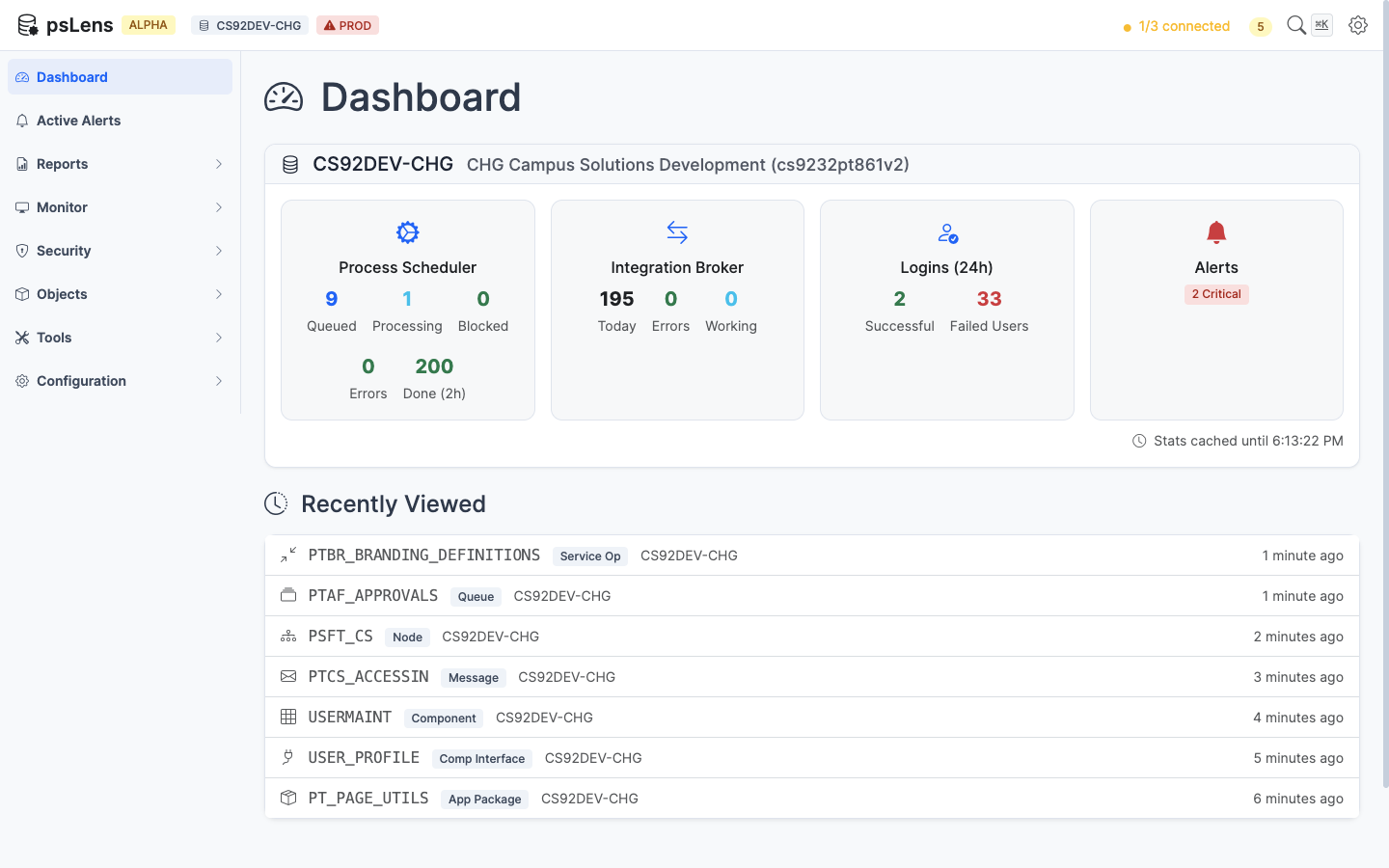
The psLens dashboard showing database connection status and active alerts
The top section of the dashboard shows active alerts grouped by database. Each alert card tells you:
Alerts are color-coded by severity:
| Color | Severity | Meaning |
|---|---|---|
| Red | Critical | Immediate attention recommended |
| Yellow | Warning | Should be investigated |
| Blue | Info | Low priority, worth noting |
If there are no active alerts, the dashboard shows an “all clear” state.
For each active database connection, the dashboard renders a database card with four operational monitoring categories. Each category displays a visual 0–100 circular health ring, a health tier label, and key operational metrics:
| Status Tier | Score Range | Color | Icon | Meaning |
|---|---|---|---|---|
| Healthy | 90 – 100 | Green | Operations normal; no critical issues or high error rates. | |
| Degraded | 60 – 89 | Yellow | Moderate errors, stalled queues, or active warnings detected. | |
| Critical | 0 – 59 | Red | Severe issues, active critical alerts, or blocked queues. |
Each score begins at 100 points and applies bounded deductions based on real-time database queries and active alert states:
Evaluates Process Scheduler queue health, blocked jobs, and recent execution failures:
Evaluates messaging throughput, stalled contracts, and synchronous/asynchronous transaction failures:
Evaluates authentication activity and failed sign-on attempts over the rolling 24-hour window:
failed_logins critical alert is currently firing.PSPTLOGINAUDIT (capped at 30 points total).Evaluates the overall system alert posture across all enabled alert checkers:
Note on Muted Alerts: Alerts that are currently muted (suppressed) in psLens are excluded from health score deductions so maintenance windows or known issues do not artificially lower the score.
The dashboard also shows whether psLens can connect to each configured database. A database that is unreachable will still show in the list but will be marked as disconnected. Alerts for a disconnected database won’t run until the connection is restored.
The dashboard uses a live connection to the psLens server. Alert results are updated automatically on the page as new check results arrive — you do not need to manually refresh.
Alert checks run on a background schedule (default: every 5 minutes). The timestamp on each alert card shows when that specific check last completed.
Click a database’s name or its DB Home button to open DB Home, the page for that one database.
Each alert item on the dashboard has a direct link to the relevant page in psLens. For example:
Alert results are automatically cleared when the underlying issue resolves. For example, if a long-running process finishes, its alert disappears from the dashboard on the next check cycle. There is no manual dismiss — the alerts always reflect the current state of the system.
Alerts are configured in config.yaml. You can enable or disable individual alert types, adjust thresholds, and exclude specific processes or operations. See Configuration and Alerts for details.
One database’s alerts, Process Scheduler, Integration Broker, sign-ins, projects, and reports on one page.