# System Overview
> The health overview of all connected databases and active alerts.
---
Site [llms.txt](/llms.txt)
---
## System Overview
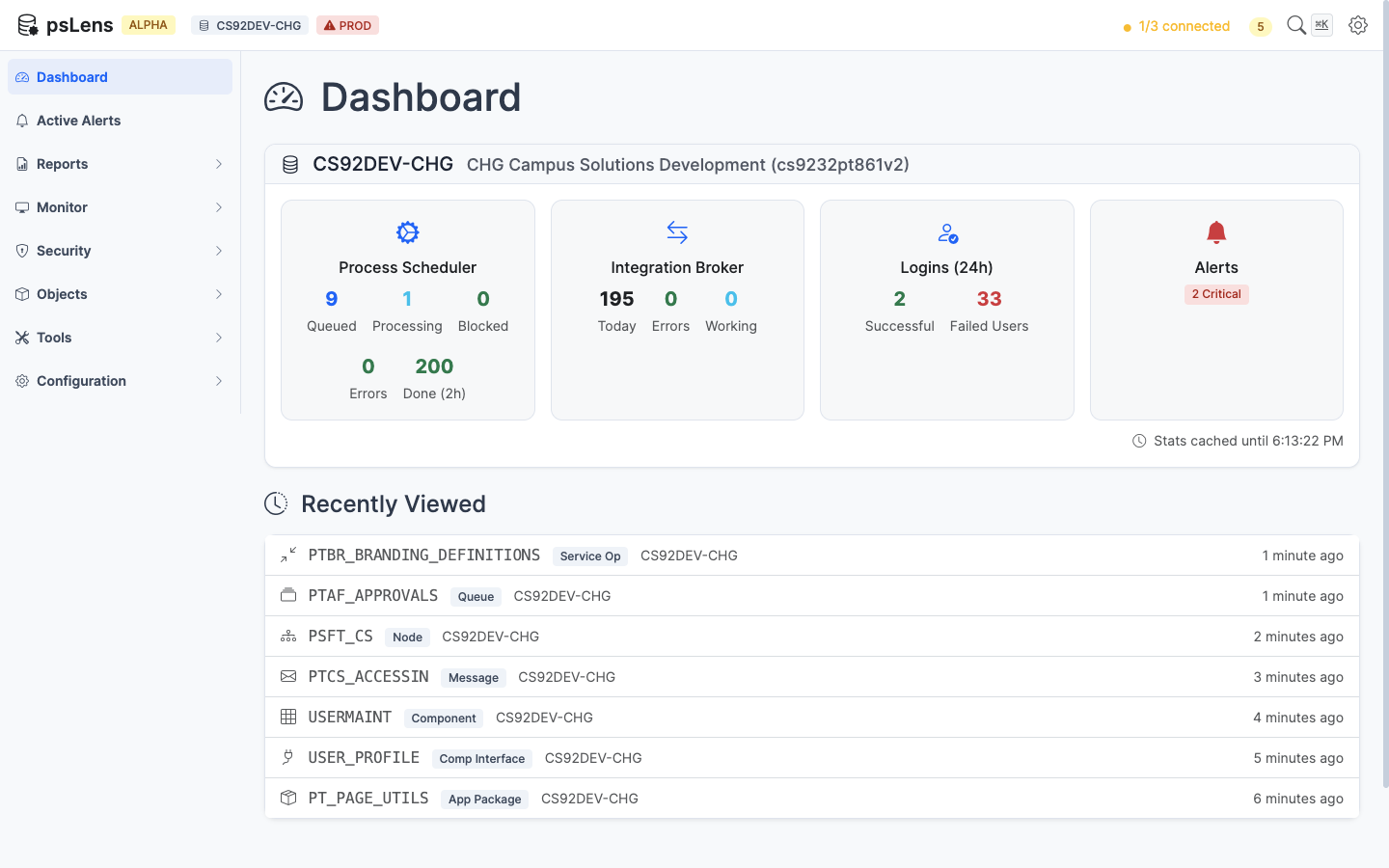
The home screen of psLens (System Overview) gives you a quick health overview of all your connected PeopleSoft databases, with a focus on anything that currently needs attention.
The psLens dashboard showing database connection status and active alerts
### What You See on the Dashboard
#### Alert Summary
The top section of the dashboard shows active alerts grouped by database. Each alert card tells you:
- **What type of issue was found** (for example, long-running processes or IB errors)
- **How many items** were found in this check
- **When the check last ran**
- **A link** to the relevant monitor page for more detail
Alerts are color-coded by severity:
| Color | Severity | Meaning |
| ------ | -------- | ------------------------------- |
| Red | Critical | Immediate attention recommended |
| Yellow | Warning | Should be investigated |
| Blue | Info | Low priority, worth noting |
If there are no active alerts, the dashboard shows an "all clear" state.
#### Database Cards and Health Scores
For each active database connection, the dashboard renders a database card with four operational monitoring categories. Each category displays a visual 0–100 circular health ring, a health tier label, and key operational metrics:
| Status Tier | Score Range | Color | Icon | Meaning |
| ------------ | ----------- | ------ | ------------------------------------------------------------ | ------------------------------------------------------------- |
| **Healthy** | 90 – 100 | Green | | Operations normal; no critical issues or high error rates. |
| **Degraded** | 60 – 89 | Yellow | | Moderate errors, stalled queues, or active warnings detected. |
| **Critical** | 0 – 59 | Red | | Severe issues, active critical alerts, or blocked queues. |
Each score begins at **100 points** and applies bounded deductions based on real-time database queries and active alert states:
##### 1. Process Scheduler Health Score
Evaluates Process Scheduler queue health, blocked jobs, and recent execution failures:
- **Active Critical Process Alerts:** -25 points per active alert (capped at 50 points total).
- **Active Warning Process Alerts:** -10 points per active alert (capped at 20 points total).
- **Currently Blocked Processes:** -15 points per process currently in *Blocked* status (RunStatus 18, capped at 40 points total).
- **Process Errors Today:** -2 points per process ending in *Error* (3), *Not Successful* (10), or *Unable to Post* (12) since midnight (capped at 20 points total).
##### 2. Integration Broker Health Score
Evaluates messaging throughput, stalled contracts, and synchronous/asynchronous transaction failures:
- **Active Critical IB Alerts:** -25 points per active alert (capped at 50 points total).
- **Active Warning IB Alerts:** -10 points per active alert (capped at 20 points total).
- **IB Errors & Timeouts Today:** -2 points per failed or timed-out message since midnight (capped at 30 points total).
- **IB Working / Stalled Items Today:** -2 points per message in *New* or *Working* status since midnight (capped at 15 points total).
##### 3. User Logins (24h) Health Score
Evaluates authentication activity and failed sign-on attempts over the rolling 24-hour window:
- **Active Failed Logins Alert:** -30 points if the `failed_logins` critical alert is currently firing.
- **Unique Users with Failed Logins (last 24h):** -1 point per unique operator ID with failed login attempts recorded in `PSPTLOGINAUDIT` (capped at 30 points total).
##### 4. Active Alerts Health Score
Evaluates the overall system alert posture across all enabled alert checkers:
- **Active Critical Alerts:** -25 points per active critical alert across any checker (capped at 60 points total).
- **Active Warning Alerts:** -10 points per active warning alert across any checker (capped at 30 points total).
- **Active Info Alerts:** -2 points per active informational alert (capped at 10 points total).
> **Note on Muted Alerts:** Alerts that are currently muted (suppressed) in psLens are excluded from health score deductions so maintenance windows or known issues do not artificially lower the score.
#### Database Connection Status
The dashboard also shows whether psLens can connect to each configured database. A database that is unreachable will still show in the list but will be marked as disconnected. Alerts for a disconnected database won't run until the connection is restored.
### How Alerts and Health Scores Are Refreshed
The dashboard uses a live connection to the psLens server. Alert results are updated automatically on the page as new check results arrive — you do not need to manually refresh.
Alert checks run on a background schedule (default: every 5 minutes). The timestamp on each alert card shows when that specific check last completed.
### Navigating from the Dashboard
Click a database's name or its **DB Home** button to open [DB Home](/docs/dashboard/db-home/), the page for that one database.
Each alert item on the dashboard has a direct link to the relevant page in psLens. For example:
- A **long-running process** alert links to the Process Monitor entry for that process instance
- An **IB operation error** alert links to the IB Monitor entry for that operation
- A **process error** alert links to the Process Monitor entry for that process
### Dismissing Alerts
Alert results are automatically cleared when the underlying issue resolves. For example, if a long-running process finishes, its alert disappears from the dashboard on the next check cycle. There is no manual dismiss — the alerts always reflect the current state of the system.
### Alert Configuration
Alerts are configured in `config.yaml`. You can enable or disable individual alert types, adjust thresholds, and exclude specific processes or operations. See [Configuration](/docs/getting-started/configuration/) and [Alerts](/docs/alerts/) for details.
---
Section pages:
- [DB Home](/docs/dashboard/db-home/): One database's alerts, Process Scheduler, Integration Broker, sign-ins, projects, and reports on one page.