Installation
Categories:
The psLens web application connects to your PeopleSoft environments with a limited version of our SWS framework.
You will install a PeopleSoft Application Designer project (CHG_PSLENS) with two web services that expose a REST API for reading data from PeopleSoft tables. psLens calls the web services instead of talking to the database directly. The CHG_PSLENS_SWSPQL service operation performs most of the work. A secondary operation, CHG_PSLENS_METADATA_GET, returns metadata that database tables do not store. It relies on proprietary PeopleCode functions.
We do NOT deliver the full SWS framework to customers for psLens. The full SWS framework is a commercial product. It provides a query language, a web service framework, and tools for managing REST APIs on PeopleSoft. psLens uses a small subset of the framework to read PeopleSoft tables.
This installation guide assumes that Cedar Hills Group, Inc. hosts the psLens web application. If you host psLens yourself, see Deployment Options for local setup instructions. Hosting psLens with Cedar Hills Group provides the fastest setup. It is our recommended option for most customers.
%%{init: {"theme": "redux-color", "flowchart": {"htmlLabels": true, "padding": 16, "nodeSpacing": 60, "rankSpacing": 80, "subGraphTitleMargin": {"top": 10, "bottom": 14}}}}%%

flowchart LR

  subgraph EXT["psLens deployment"]
    psLens[psLens Web Application]
  end
  subgraph PS["Your PeopleSoft Infrastructure"]
    IB.DEV["DEV Integration Broker"]
    DB.DEV[("DEV PeopleSoft DB<br/>read-only<br/>whitelisted tables")]
    IB.DEV --> DB.DEV
    IB.TST["TST Integration Broker"]
    DB.TST[("TST PeopleSoft DB<br/>read-only<br/>whitelisted tables")]
    IB.TST --> DB.TST
    IB.PROD["PROD Integration Broker"]
    DB.PROD[("PROD PeopleSoft DB<br/>read-only<br/>whitelisted tables")]
    IB.PROD --> DB.PROD
end

  psLens -->|SWS https| IB.DEV
  psLens -->|SWS https| IB.TST
  psLens -->|SWS https| IB.PROD
The high-level installation steps are:
- Download the
CHG_PSLENSApplication Designer project archive from your psLens instance (see details below). - Import the project into your PeopleSoft DEV environment (see details below).
- Run the whitelist insert statements to grant table access (see details below).
- Configure the service account for API access and assign the required permissions (see details below).
- Ensure your psLens instance can reach the PeopleSoft Integration Gateway on port 443 (or your configured port).
- Work with Cedar Hills Group to connect the psLens application to your environments.
Download the PeopleSoft Project
The Application Designer project files are delivered directly inside your running psLens instance:
- Sign in to your psLens web application.
- In the left navigation sidebar under Settings & Configuration, select PeopleSoft Project (or navigate to Settings and click the PeopleSoft Project card).
- On the PeopleSoft Project Download page, the latest release archive is featured at the top. Releases are named by ISO date (
YYYY-MM-DD-pslens-psoft-project.zip). Always install the most recent release. - Click Download Latest Project (.zip) to save the archive to your workstation.
- Extract the archive. The extracted directory contains the
CHG_PSLENSApplication Designer project.
PeopleSoft Project Installation
You will repeat these steps for each PeopleSoft environment you want to connect to psLens (DEV, TST, PROD). We recommend starting with DEV first, then TST, then PROD. The steps are the same for each environment. You can follow your standard change management process for importing the project into TST and PROD.
- Using Application Designer, import the project into your PeopleSoft environment from the extracted folder (Tools → Copy Project → From File).
- After importing the project, you need to build the CHG_PSLENS_WL table.
- This holds the list of whitelisted tables that psLens can read. You will run the whitelist inserts to populate this table.
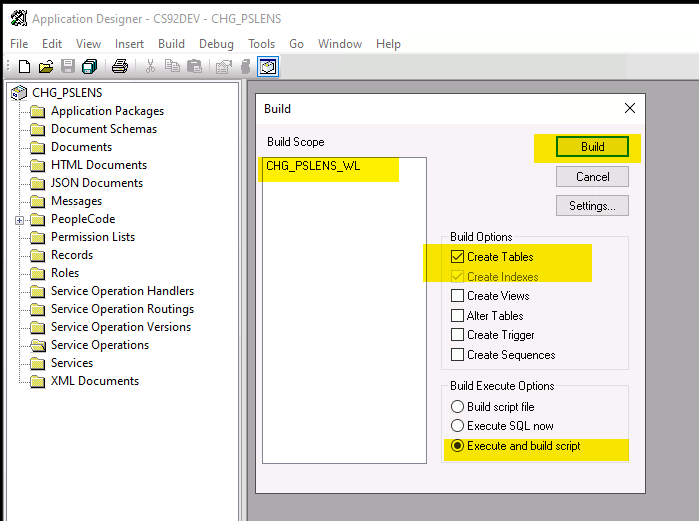
Build
- Compile all the project PeopleCode to ensure that the project was fully imported. There should be no errors. If there are errors, please contact Cedar Hills Group for assistance or try to re-import the project.
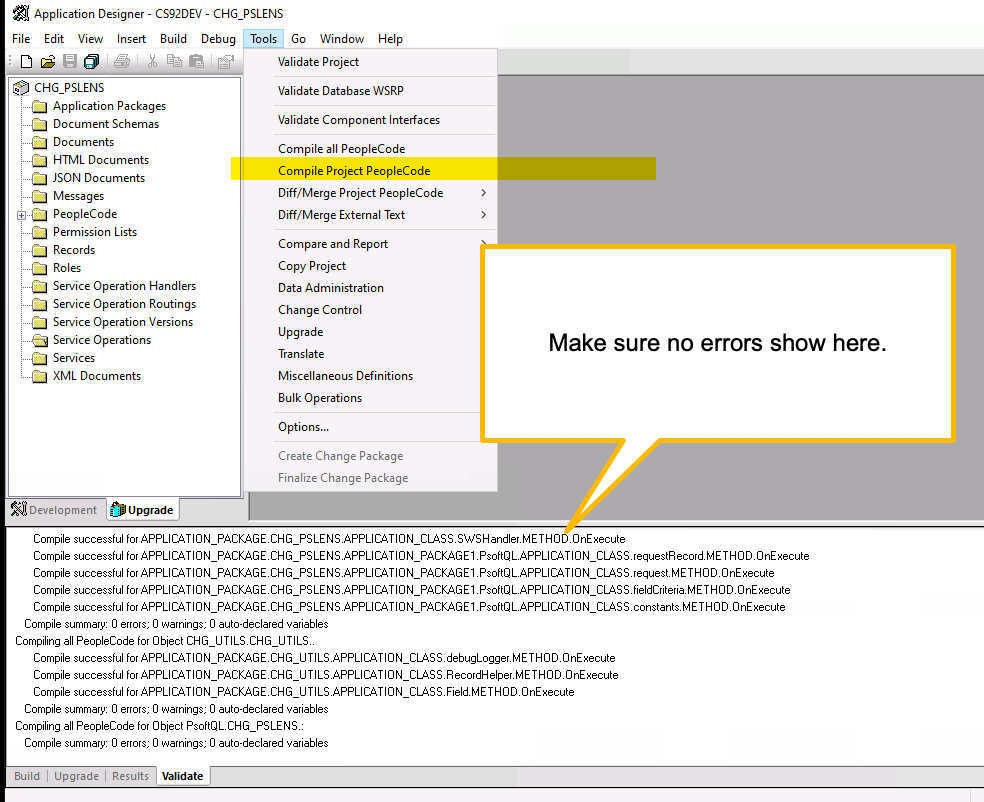
Compile
Whitelist Inserts
You will need to run the whitelist inserts to allow psLens to read the tables it needs. Please see the Whitelist Tables page for the full list of inserts. You will need to run these inserts in each PeopleSoft environment you want to connect to psLens (DEV, TST, PROD).
PeopleSoft Service Account
psLens uses a dedicated PeopleSoft operator ID (OPRID) for API access. This is the account that psLens uses to authenticate to the SWS framework.
The naming convention for the account is CHG_PSLENS_API_USER. You can use a different name if you prefer, but you will need to update the psLens configuration to match.
- Create OPRID: CHG_PSLENS_API_USER
- Add a complex password that meets your security requirements. This password will be used in the psLens configuration. Use a password manager to generate a strong password.
- Grant the following permissions to the account:
- ID Type: NONE
- Role: CHG_PSLENS_API_USER
- Permission List: CHG_PSLENS_API_USER
The account should NOT have any other permissions or roles. It should only have the permissions required to read the whitelisted tables. If you have any sort of dynamic security roles, make sure that they do not grant any additional permissions to this account. The account should be as limited as possible. The permission list that we deliver in the project is the entire set of permissions that psLens needs to read the whitelisted tables. If you have any questions about the permissions, please contact Cedar Hills Group.
psLens to PeopleSoft Connectivity
We will cover the most common configuration where Cedar Hills Group, Inc. hosts the psLens web application and you have a network team that can allow the psLens server to reach the PeopleSoft Integration Gateway.
The default configuration for psLens is to connect to the PeopleSoft Integration Gateway over HTTPS from the internet. The psLens server must be able to reach the PeopleSoft Integration Gateway on port 443 (or your configured port). This often requires a firewall rule to allow the psLens server to reach the PeopleSoft Integration Gateway. The hostname of your PeopleSoft Integration Gateway must be resolvable from the psLens server. This is often an entry in your public DNS. Most organizations do NOT expose the PeopleSoft Integration Gateway to the public internet.
If your organization exposes the PeopleSoft Integration Gateway to the public internet, you likely will not need to make any changes to your firewall.
Cedar Hills Group configures a dedicated egress IP address for your psLens instance. Work with your network team to allow this IP address to reach the PeopleSoft Integration Gateway on port 443 (or your configured port). If you have questions about connectivity, contact Cedar Hills Group.
%%{init: {"theme": "redux-color", "flowchart": {"htmlLabels": true, "padding": 16, "nodeSpacing": 60, "rankSpacing": 80, "subGraphTitleMargin": {"top": 10, "bottom": 14}}}}%%

flowchart LR
  psLens[psLens Web Application]
  subgraph PS["Your Infrastructure"]
    DNS["External DNS"]
    FW["Firewall / Network Team"]

    IB.DEV["DEV Integration Broker"]
    DB.DEV[("DEV PeopleSoft DB<br/>read-only<br/>whitelisted tables")]
    IB.DEV --> DB.DEV
    FW --> IB.DEV
  end

  psLens -->|SWS https| FW
  psLens -->|DNS lookup| DNS
Curl Testing
PeopleSoft administrators often want to test connectivity between psLens and the PeopleSoft Integration Gateway before configuring the web application. The following curl command tests connectivity. Replace the placeholders with your actual values.
PS_LENS_API_USER- The PeopleSoft operator ID that psLens uses to authenticate to the SWS framework. This is the account that you created in the previous step. The default value isCHG_PSLENS_API_USER.PS_LENS_API_PASSWORD- The password for the PeopleSoft operator ID that psLens uses to authenticate to the SWS framework. This is the password that you set when you created the account.PS_HOST- The hostname of your PeopleSoft Integration Gateway. psLens uses this hostname to connect to the PeopleSoft Integration Gateway. The psLens server must resolve this hostname.PS_PORT- The port your Integration Gateway listens on. The PeopleSoft default for HTTP is port8000. HTTPS frequently uses port8443.PS_NODE- The name of the PeopleSoft node that fronts the REST listening connector. The default value isPSFT_CS. Use the node that matches your environment.
PS_LENS_API_USER='CHG_PSLENS_API_USER'
PS_LENS_API_PASSWORD='your-password-here'
PS_HOST='psft.example.com'
PS_PORT='8000'
PS_NODE='PSFT_CS'

curl --request POST \
  --url "https://${PS_HOST}:${PS_PORT}/PSIGW/RESTListeningConnector/${PS_NODE}/CHG_PSLENS_SWSPQL/" \
  -u "${PS_LENS_API_USER}:${PS_LENS_API_PASSWORD}" \
  --header 'Content-Type: application/json' \
  --data '{
  "isDebugMode": false,
  "includeFieldTypes": true,
  "includeAllDescriptions": true,
  "includeKeyFieldIndicators": true,
  "includeAllFieldLabels": true,
  "records": [
    {
      "recordName": "CHG_PSLENS_WL",
      "includeDescriptionsFor": [],
      "excludeFields": []
    }
  ]
}'
Keep single quotes around variable assignments. PeopleSoft passwords often contain !, $, or spaces. An unquoted value breaks in the shell before curl executes. In bash and zsh, an unquoted ! triggers history expansion, causing assignment failure and leaving curl to authenticate with an empty password.
A successful call returns HTTP 200 with a data.CHG_PSLENS_WL.fields array listing whitelisted RECNAME values. Two common failures:
- 401 - The operator ID or password is incorrect, or an administrator locked the account.
- 404 - The node name or service operation path is incorrect. Check
PS_NODEagainst your created node. Make sure theCHG_PSLENS_SWSPQLservice operation is active.