# Objects

> Search and explore PeopleSoft metadata objects: fields, records, pages, components, queries, Integration Broker nodes, batch processes, and more.

---

Site [llms.txt](/llms.txt)

---

## Objects

- **[Object Relationships](/docs/objects/object-relationships/)** — Structural guide and Mermaid diagrams illustrating how PeopleSoft fields, records, pages, components, menus, portal CREFs, and security definitions interrelate.

psLens lets you search and explore the core PeopleSoft metadata objects that define how the application is built. Every object type has the same two-step flow: a search page where you find what you're looking for, and a detail page that consolidates everything psLens knows about that object across the database.

Useful when you need to look up an object without firing up App Designer.

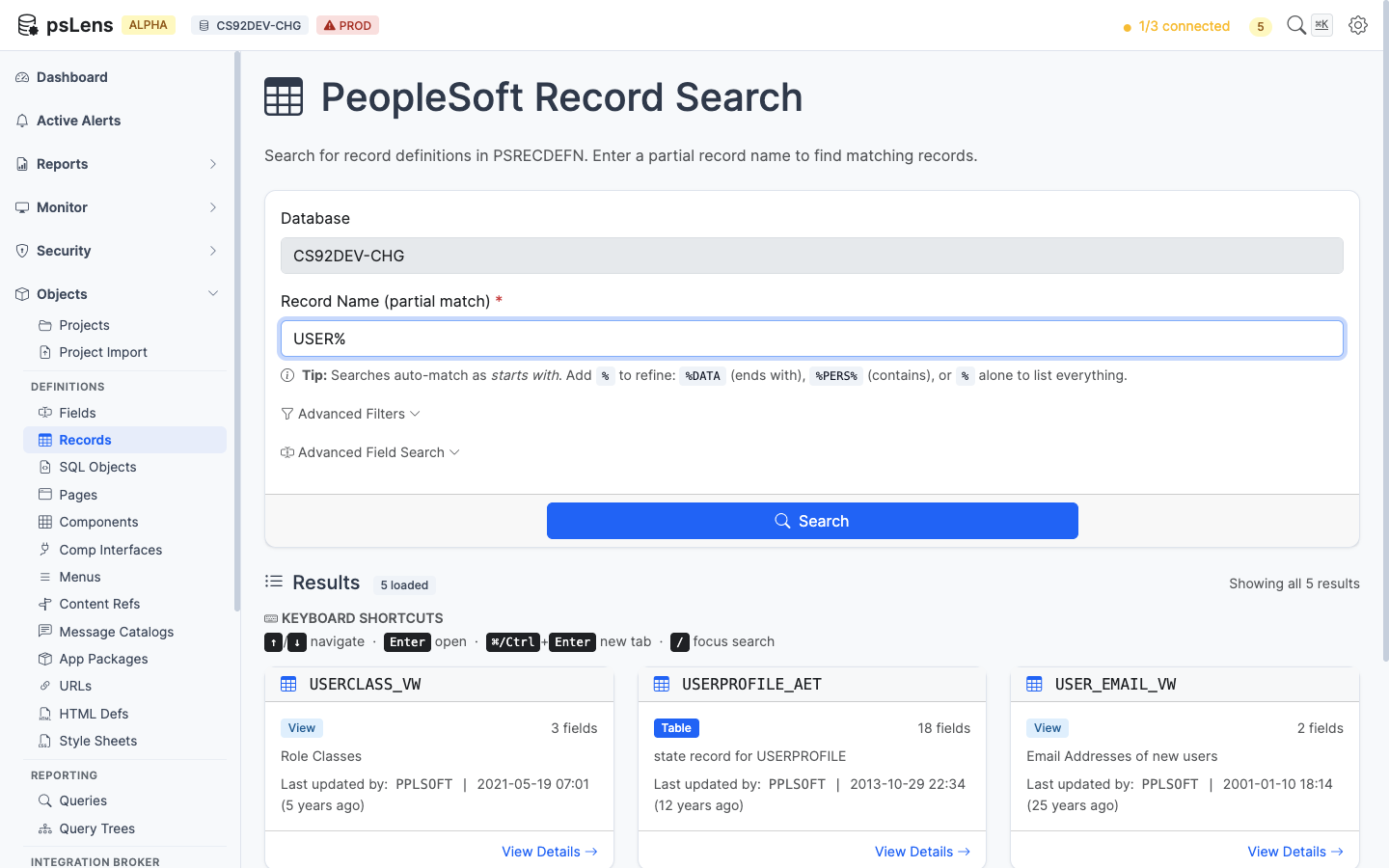
<figure><img src="/images/screenshots/records-search.png"
			alt="Record search results showing PeopleSoft record definitions"><figcaption>
			<p>Searching for records by name with results displayed as cards</p>
		</figcaption>
</figure>


### Search and Navigation

#### How Search Works

All metadata pages share the same search behavior:

1. Type at least a partial name in the search box.
2. Results appear automatically after a short pause (no need to press Enter).
3. Results are paginated — scroll down to load more.
4. Click any result card to open the detail view.

Search auto-matches as *starts with* — typing `PS` finds `PSCLASSDEFN`, `PSMENUITEM`, and so on. For more control, include `%` yourself: `%SECURITY` (ends with), `%PERS%` (contains), or just `%` to list every row. The per-object pages below note when a specific search box uses different behavior (for example, SQL Object search runs against the SQL text body, not just the name).

#### Cross-Object Navigation

The detail page for each object type follows a consistent layout: main properties on the left, and a right-side **Related Data** sidebar with toggles that fetch additional information on demand. Toggling a panel ON fires a request, and the result loads inline. Each toggle runs a single query against the underlying tables (PSPRSMDEFN ancestors, PSPCMPROG references, etc.) and renders the result in place. The pattern is the same across every object type.

Where it makes sense, every linked reference (a record name, a field name, a component, a project) is clickable and navigates to that object's own detail page, so you can chase a question across the application metadata in a few clicks.

#### Exporting Object Definitions

Every PeopleSoft object detail page in psLens supports exporting its full definition as a Markdown file. Look for the **Export as Markdown** card on the detail page. This is useful for documentation, code reviews, or sharing object details outside of psLens — and the structured Markdown format is ideal as input to AI tools like ChatGPT or Claude.

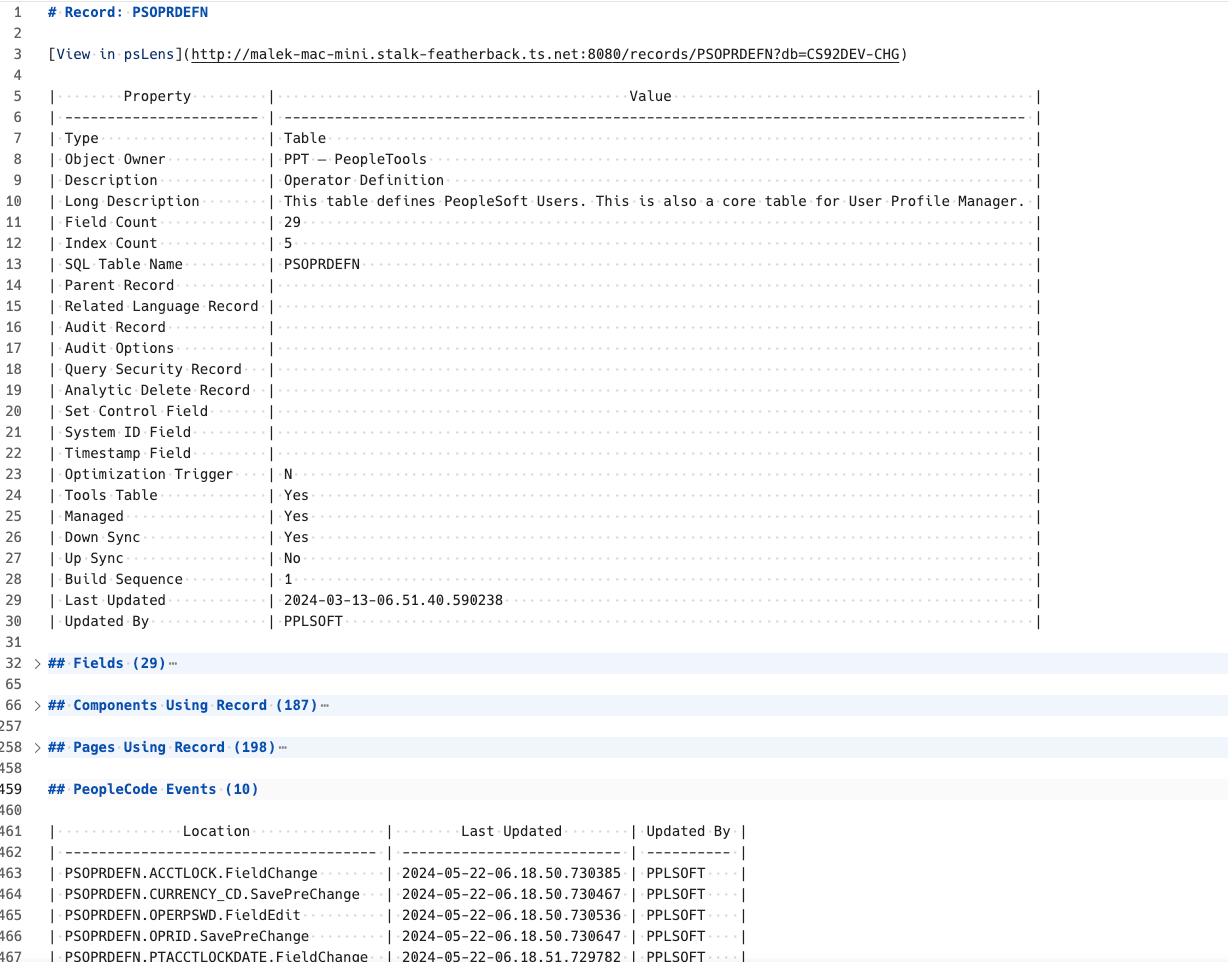
<figure><img src="/images/screenshots/markdown-export-example.png"
			alt="Example of a psLens markdown export for a PeopleSoft object"><figcaption>
			<p>The export preserves object structure, related data, and code in a format that works in docs, code review, and AI workflows</p>
		</figcaption>
</figure>


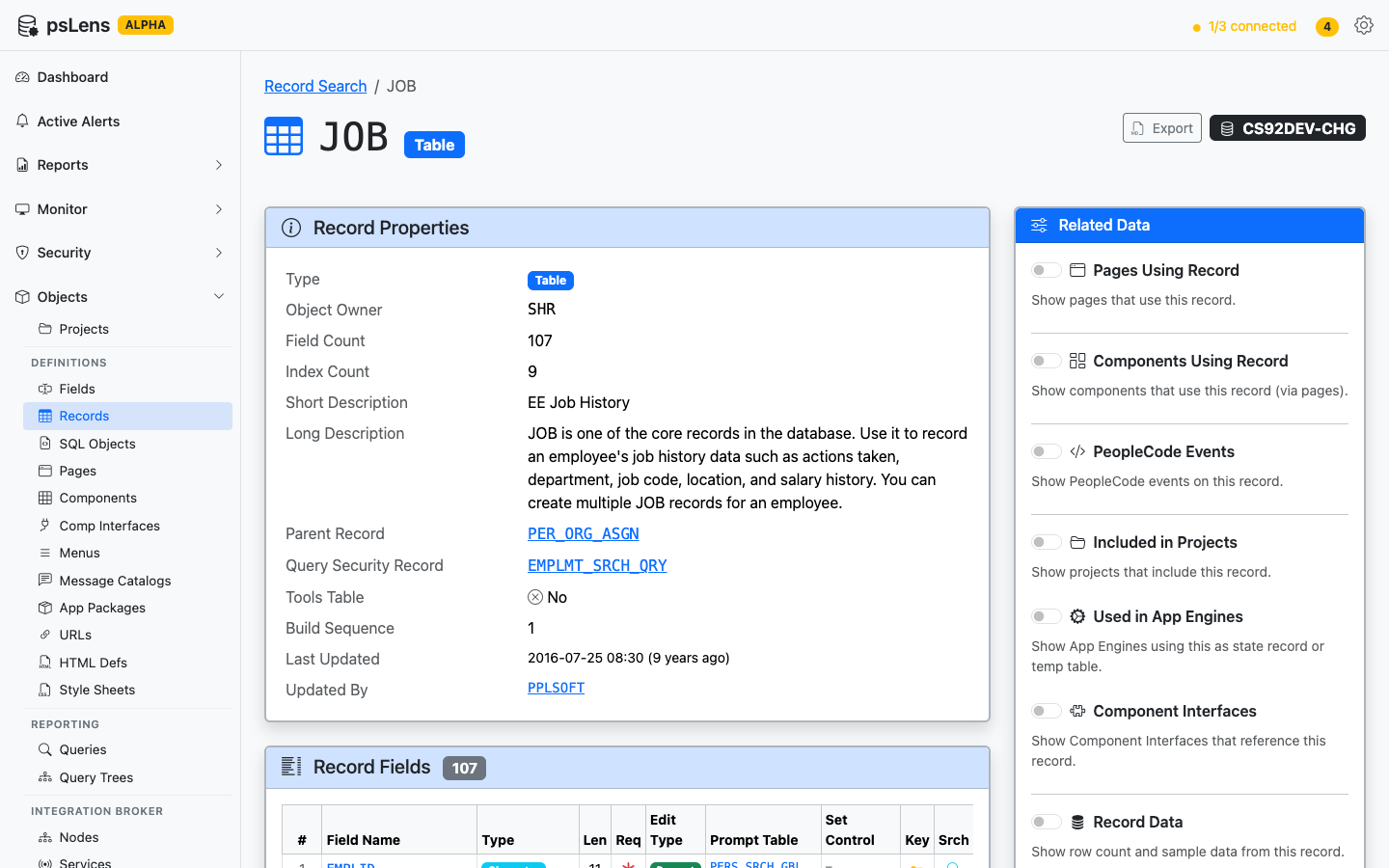
<figure><img src="/images/screenshots/record-detail.png"
			alt="Record detail page showing the kind of structured metadata psLens makes available before export"><figcaption>
			<p>Each detail page consolidates the object definition, related data, and export path in one browser view</p>
		</figcaption>
</figure>


#### Deep Links to PIA

Every detail page surfaces a link out to the corresponding App Designer or PIA navigation in PeopleSoft, so you can jump from a psLens view straight into the live environment when you need to make a change.

## See Metadata Browsing Live

The object docs show the surface area. A live walkthrough is where the value becomes obvious: how quickly a user can move from a name search to the exact record, page, component, service, or process definition they need.

<div class="mt-4">
  <a class="btn btn-lg btn-primary me-3 mb-3" href="/contact/">
    <i class="fas fa-calendar-check me-2"></i>Book a Demo
  </a>
  <a class="btn btn-lg btn-outline-primary me-3 mb-3" href="/docs/use-cases/ai-enablement/">
    <i class="fas fa-robot me-2"></i>AI Enablement
  </a>
</div>

---

Section pages:

- [Object Relationships](/docs/objects/object-relationships/): Relationships and database table mappings between PeopleSoft fields, records, pages, components, menus, portal CREFs, Component Interfaces, Integration Broker, Application Engine, Query Security Trees, BI Publisher, Fluid UI, Related Content, File Layouts, Application Data Sets, and security definitions.
- [Projects](/docs/objects/projects/): Browse and inspect App Designer project definitions (PSPROJECTDEFN) and their constituent metadata items.
- [Project Import](/docs/objects/project-import/): Import and compare PeopleSoft XML project files against the target database to review object states and perform PeopleCode/SQL diffs.
- [Definitions](/docs/objects/definitions/): Browse PeopleSoft data, interface, and code definitions: records, fields, pages, components, and more.
- [Reporting](/docs/objects/reporting/): Explore PeopleSoft query and reporting definitions: PSQuery and Query Trees.
- [Integration Broker](/docs/objects/integration-broker/): Explore PeopleSoft Integration Broker definitions: nodes, services, service operations, messages, and queues.
- [Batch Processing](/docs/objects/batch/): Explore Process Scheduler definitions: Application Engine programs, process definitions, jobs, recurrences, and servers.