# Reports
> psLens security and audit reports for PeopleSoft: full access analysis, node password checks, web service access reviews, and more.
---
Site [llms.txt](/llms.txt)
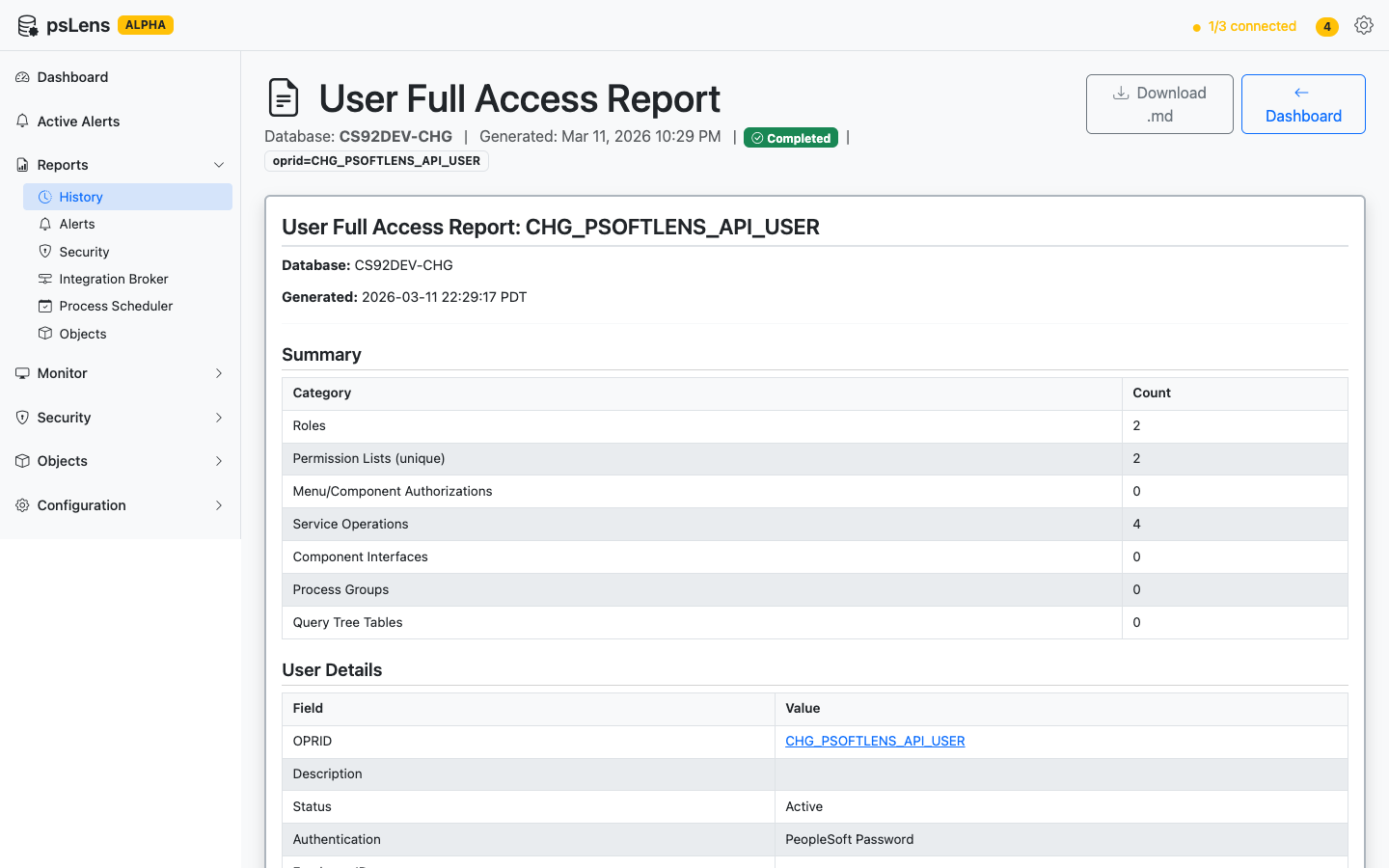
---
## Security and Audit Reports
Alerts fire in real time. Reports run on demand against a selected database and produce a Markdown document with findings, evidence, and links back into psLens. Run them before an upgrade, after a migration, or whenever someone asks for proof.
Reports run in the background, render in the browser, and export as Markdown for audit trails and follow-up
## How Reports Work
1. Go to the **Reports** page and choose a report to run
2. Select the database you want to analyze
3. The report runs in the background — you can navigate away and come back
4. When the report finishes, results are displayed as formatted output in the browser
5. You can also download the results as a Markdown (`.md`) file
Reports run asynchronously, so they don't block the UI and you won't lose your work if the report takes a few minutes. Progress is shown while the report runs.
**Report results are stored for 90 days.** You can go back and review previous runs from the Reports page.
## Running a Report
1. Navigate to **Reports** in the left sidebar
2. Click **Run New Report**
3. Select the report type from the dropdown
4. Choose the database to run against
5. Adjust any parameters (such as threshold values) if needed
6. Click **Run**
The report appears in your report history as "Running." Refresh or wait on the page — results appear automatically when the report completes.
## Scheduling Reports
In addition to running reports on-demand, you can schedule reports to execute automatically at recurring intervals. Scheduled reports can target specific databases and send notifications when they complete.
### How to Schedule a Report
1. Navigate to **Reports** and click **Run New Report**.
2. Locate the report you want to schedule and click the **Schedule** button.
3. In the configuration modal:
- **Target Databases**: Select one or more active databases to target.
- **Schedule Interval**: Choose from **Daily**, **Weekly**, or **Monthly**.
- **Time of Day**: Specify the execution time in server local time (e.g., `02:00` or `14:30`).
- **Notification Deliveries**: Toggle **Email** or **Webhook** notifications on completion, then select an existing target from the dropdown or input a custom target.
4. Click **Save Schedule**. You will be automatically redirected to the **Active Schedules** page where your new schedule is listed.
### Managing Active Schedules
Navigate to **Active Schedules** in the left sidebar. Here you can:
- **View**: See all scheduled report parameters, target databases, and delivery endpoints.
- **Edit**: Click **Edit** to modify the recurrence interval, time, targets, or databases.
- **Cancel**: Click **Cancel** to disable and delete the schedule override.
## Downloading Reports
On any completed report's results page, click **Download as Markdown** to save the full report output as a `.md` file. Markdown files are plain text and can be opened in any text editor, rendered on GitHub, or converted to other formats.
If you want to inspect the artifact before installing anything, start with [Sample Report Output](/docs/reports/sample-output/).
---
## Report Categories
Browse reports by category:
- [Security](/docs/reports/security/) — Permission list analysis, password audits, user access reviews
- [Integration Broker](/docs/reports/integration-broker/) — Service operation audits, node security, routing analysis, volume reporting
- [Process Scheduler](/docs/reports/process-scheduler/) — Recurring process exports, critical process monitoring
- [Objects](/docs/reports/objects/) — Customization inventory, cross-database project comparison
## Need a Report We Don't Have?
We are open for product feedback. Each report here is a module in the psLens report framework, and the 26 reports were added one module at a time, so new reports are usually quick to incorporate. If your audit or operations work needs a report psLens does not ship, [tell us](/contact/). psLens is onboarding design partners, and partner requests set the build order.
## See Reports in Action
The report catalog tells you what each report reads and what it returns. A live walkthrough shows the important part: how teams run them, how long they take, and how the output fits into audits, migrations, and operational reviews.
---
Section pages:
- [Security](/docs/reports/security/): Security audit reports for PeopleSoft: permission list analysis, password audits, user access reviews, and more.
- [Integration Broker](/docs/reports/integration-broker/): Integration Broker reports for PeopleSoft: service operation audits, node security, routing analysis, and volume reporting.
- [Process Scheduler](/docs/reports/process-scheduler/): Process Scheduler reports for PeopleSoft: recurring process exports, critical process monitoring, and batch schedule analysis.
- [Objects](/docs/reports/objects/): PeopleSoft object reports: customization inventory, cross-database project comparison, and object analysis.
- [Sample Report Output](/docs/reports/sample-output/): Real psLens report output, exported to Markdown from a development environment, so you can see the exact artifact a report run produces before installing anything.